An explanation of the Processing screen is shown below:
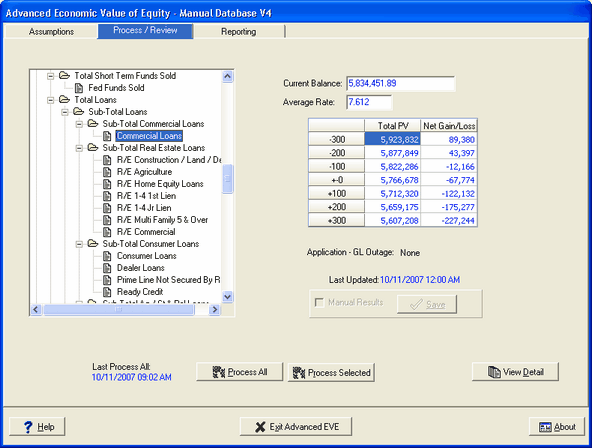
General Ledger Tree Structure - The left side of the screen displays the institution's General Ledger laid out in the familiar "tree structure." This allows you to access and review the results of the various accounts and subtotals.
Current Balance - When an account is highlighted, the system displays the current balance of the highlighted account.
Average Rate - The system displays the weighted average rate of the highlighted account.
Shock Scenario Results - The box on the right side of the screen shows the results in each of the seven shock scenarios.

Application-GL Outage - The general ledger is out of balance to the selected application file. This is an information only field. When a GL outage occurs, the item balance on the GL differs from the item balance of all the detail in IRR2.
IRR2 does not have the detail of this outage to determine an exact present value, so it values it at a no gain or loss (outage is marked at book). The system adds the amount of the outage to the present value of the detail, and shows it as the Total Present Value on the summary screen (Process/Review).
The shock scenario results therefore, take into consideration the outage, giving it a book value, with no effect on the resulting gain/loss calculated from the detail.
You should research why the application is out of balance to the general ledger.
Last Updated - This is the date the results were last processed.
Manual Results - You can override the system results by entering manual entries. See the Manual Results chapter for more information.
Process All - This button will process the entire balance sheet. Processing will take a few moments depending upon the number of items and the processing speed and capacity of your PC.
During the processing, the system relies on all the detail information it downloaded during the capture process to perform very accurate income calculations. All factors influencing the income, such as rate changes, rate constraints such as periodic limits or life time caps and floors are taken into account during the calculation process.
Process Selected - If you make a revision in the assumptions, you do not need to re-process the entire balance sheet again. Select the account in the 'tree structure" and click Process Selected button. This will re-process only the account selected and leave the other accounts intact.

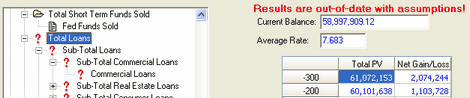
 - A question mark next to an account indicates the account has had updates and needs to be processed again as shown in the example below.
View Detail - This button offers a very powerful way to dig deeper into the data to see the results at more detailed levels. See the View Detail chapter for more information.
Find Account By Description
The option Find Account can be accessed by right clicking on the Chart of Accounts and the following pop-up option will be displayed.

This option will help you quickly find a specific account in your chart of accounts.
See Target Balance Options in the Advanced Income Shock module for the Find Account details.