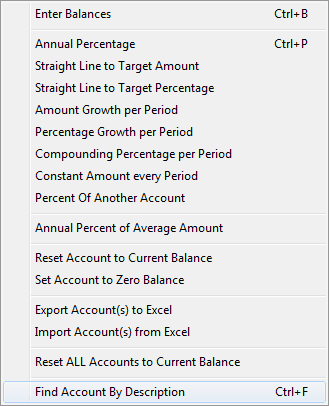
A number of methods are automated to make it easy for the user to set certain target volume goals. Select a particular account in the chart of accounts. This will be the account to which the target volumes will be applied. Right click to activate the Target Balance Entry Options menu below.
Enter Balances
By default, the Target Balances grid is displayed in a blue font, which indicates that the values are read-only. If the assumptions that need to be made are most efficiently done by just entering balances, period by period, choose the Enter Balances option from the popup menu, or use the shortcut key CTRL B.
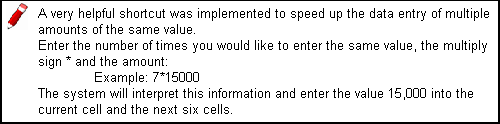
The target balance grid will change to a black font, indicating that it is no longer read-only. The cursor will be positioned in the top cell of the left column. Simply enter the balance and press ENTER to advance to the next cell. The system will automatically advance in order of the displayed periods.
Annual Percentage
With this option, which can also be activated with the shortcut key CTRL P, you specify an annual percentage rate to be applied over the selected number of periods.
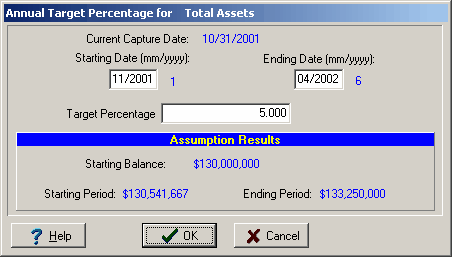
The assumption data entry screen will appear when selecting the Annual Percentage option on the popup menu. The screen shows the account the assumption will be applied to in the blue top title bar of the window.
Starting Date/Ending Date - Enter the dates, in the format requested, to which the Annual Percentage is to apply. After entering the date, the system displays the associated period next to the date.
Target Percentage - Once the target percentage has been entered, the Assumption result area will show a summary of how the assumptions will be applied.
Result:
Since you specified Period 1 as your starting point, the effective starting balance is the current balance.
5% of $ 130,000,000 |
=$ 6,500,000 Annually |
$ 6,500,000 / 12 |
=$ 541,667 per period |
$ 541,667 * 6 |
=$ 3,250,000 after 6 month |
The periodic balance therefore will be:
Per 1 |
= |
$ 130,541,667 |
Per 2 |
= |
$ 131,083,333 |
Per 3 |
= |
$ 131,625,000 |
Per 4 |
= |
$ 132,166,167 |
Per 5 |
= |
$ 132,708,333 |
Per 6 |
= |
$ 133,250,000 |
Straight Line to Target Amount
With this option, you specify a target balance and the system will divide the balance evenly over the periods specified. Again, the assumption data entry screen will be shown.
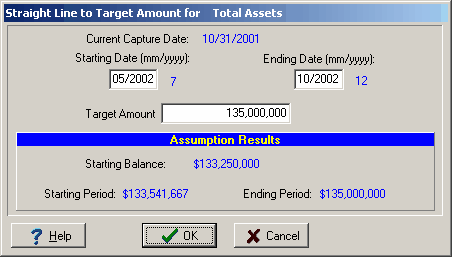
For example purposes, you will continue setting the remaining periods of the first projection year. The system displays the periods for the entered dates and the assumption results once a target amount is given.
Result:
Since you specified Period 7 as the first period to assign volumes to, Period 6 acts as your starting balance.
Starting Balance (Per 6) |
= |
$ 133,250,000 |
Ending Balance (Per 12) |
= |
$ 135,000,000 |
$ 135,000,000 - $ 133,250,000 |
= |
$ 1,750,000 Total Growth |
$ 1,750,000 / 6 |
= |
$ 291,667 Amount per Period |
The periodic balances therefore will be:
Per 7 |
= |
$ 133,541,667 |
Per 8 |
= |
$ 133,833,333 |
Per 9 |
= |
$ 134,125,000 |
Per 10 |
= |
$ 134,416,667 |
Per 11 |
= |
$ 134,708,333 |
Per 12 |
= |
$ 135,000,000 |
Straight Line to Target Percentage
With this option, the user specifies the target as a percentage growth for the periods specified. Again, the assumption data entry screen will be shown.
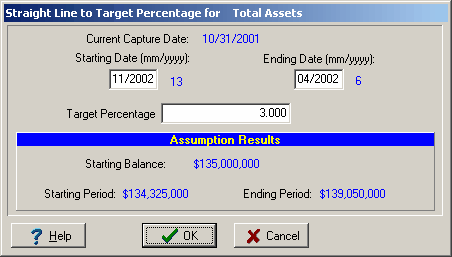
For example purposes, you will continue setting the volumes for some of the remaining periods. Again, the system displays the periods for the entered dates and the assumption results once a target percentage is given.
Result:
Since you specified Period 13 as the first period to assign volumes to, Period 12 acts as your starting balance.
Starting Balance (Per 12) |
= |
$ 135,000,000 |
3% * $ 135,000,000 |
= |
$ 4,050,000 |
Ending Balance (Per 18) |
= |
$ 139,050,000 |
$ 4,050,000 / 6 |
= |
$ 675,000 Amount per Period |
The periodic balances therefore will be:
Per 13 |
= |
$ 135,675,000 |
Per 14 |
= |
$ 136,350,000 |
Per 15 |
= |
$ 137,025,000 |
Per 16 |
= |
$ 137,700,000 |
Per 17 |
= |
$ 138,375,000 |
Per 18 |
= |
$ 139,050,000 |
Amount Growth per Period
This method increments each period by the amount specified over the prior period.
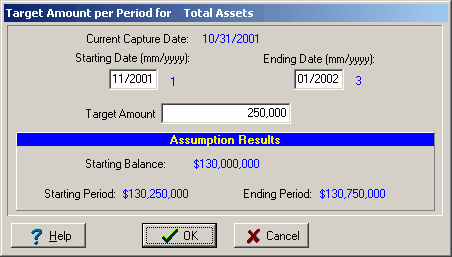
Result:
The example specifies that Period 1 to 3 should grow $ 250,000 over the prior period. Since you specified Per 1 as the first period, the current balance of $ 130,000,000 is your starting balance.
The periodic balances therefore will be:
Per 1 |
= |
$ 130,250,000 |
Per 2 |
= |
$ 130,500,000 |
Per 3 |
= |
$ 130,750,000 |
Percentage Growth per Period
This method computes the increment as a percentage of the starting balance and increments that same amount each period.
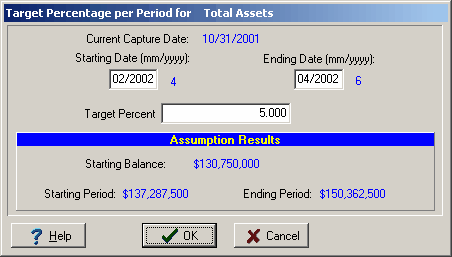
For example purposes, you will continued from the previous assumption of amount growth per period above.
Result:
Starting Balance (Per 3) |
= |
$ 130,750,000 |
5 % * $ 130,750,000 |
= |
$ 6,537,500 |
The periodic balances therefore will be:
Per 4 |
= |
$ 137,287,500 |
Per 5 |
= |
$ 143,825,000 |
Per 6 |
= |
$ 150,362,500 |
Compounding Percentage per Period
This method computes the increment as a percentage over the prior periods balance, therefore compounding the increase.
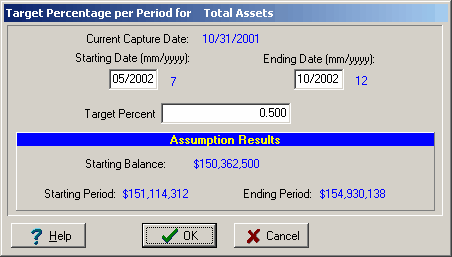
Again, you are continuing from the prior example, Percentage per Period from above.
Result:
Starting Balance (Per 6) |
= |
$ 150,362,500 |
|||
0.5 % * $ 150,362,500 |
= |
$ 751,813 |
Per 7 Balance |
= |
$ 151,114,313 |
0.5 % * $ 151,114,313 |
= |
$ 755,572 |
Per 8 Balance |
= |
$ 151,869,884 |
0.5 % * $ 151,869,884 |
= |
$ 759,349 |
Per 9 Balance |
= |
$ 152,629,233 |
0.5 % * $ 152,629,233 |
= |
$ 763,146 |
Per 10 Balance |
= |
$ 153,392,380 |
0.5 % * $ 153,392,380 |
= |
$ 766,962 |
Per 11 Balance |
= |
$ 154,159,342 |
0.5 % * $ 154,159,342 |
= |
$ 770,797 |
Per 12 Balance |
= |
$ 154,930,138 |
Constant Amount every Period
This method is an alternative to the shortcut mentioned above for quickly entering the same amount in a number of periods.
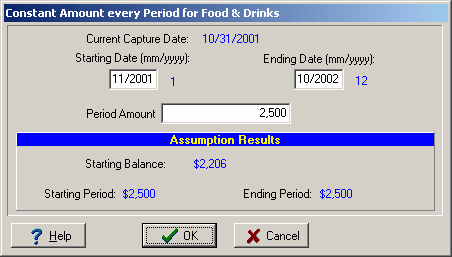
This method simply sets every period to the amount entered.
Percent of Another Account
With this option, the user can specify a percentage of another account to be applied over the selected number of periods.
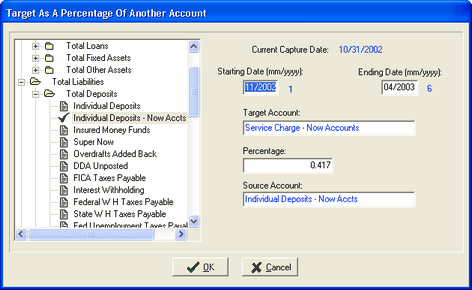
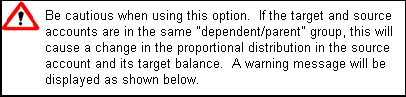
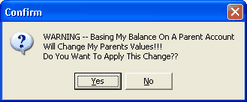
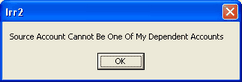
The system will not allow you to select a "dependent" account as the source account. A "dependent" account is an account which subtotals into the target account you have selected. The following message will be displayed.
This option was designed to have the target and source accounts in different subtotal areas. Example: Service Charge Income on Deposits (Liability).
Starting Date/Ending Date - Enter the dates, in the format requested, to which the Percentage is to apply. After entering the date, the system displays the associated period next to the date.
Target Account - The account the user selected from the tree view on the Growth tab is displayed here.
Percentage - Enter the percentage that will be applied to each time period.
Source Account - Enter the account on which the percentage above will be based,
Result:
In the example above, the system will calculate the periodic balance for the Service Charge-NOW Accounts based on .417% of each periodic balance of the Individual Deposits-NOW
Source Account |
Target Account |
||
Individual Deposits-NOW |
Percentage |
Service Charge-NOW |
|
Per 1 |
11,312,682 |
X .417 |
= 47,174 |
Per 2 |
11,386,043 |
X .417 |
= 47,480 |
Per 3 |
11,459,405 |
X .417 |
= 47,786 |
Per 4 |
11,532,767 |
X .417 |
= 48,092 |
Per 5 |
11,606,128 |
X .417 |
= 48,398 |
Per 6 |
11,679,490 |
X .417 |
= 48,703 |
Annual Percent of Average Amount
This method allows the user to project an average of several prior months rather than just the prior period.
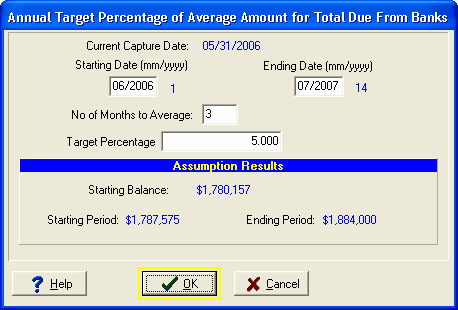
The example above uses the average of the last three historical periods to obtain the starting balance from which to grow, rather than using the current balance which the normal Annual Percentage option would be using in this same example.
Reset Account to Current Balance
This option has the effect of removing any assumption made on this account and resetting all projected volumes to the current balance.

Set Account to Zero Balance
This option sets all the target projections for the selected account to zero. This option is not available on a subtotal account.
Export Account(s) to Excel
The export option allows the user to copy the target balances in an account or group of accounts to an Excel spreadsheet and make changes. If the user needs to change the target balances in several time periods in several accounts, this feature allows them easy access to all the data on one sheet.
Select the account or group of accounts by using the standard Windows® convention of selecting multiple accounts. Right click the account and select Export Account(s) to Excel. The following screen will be displayed:
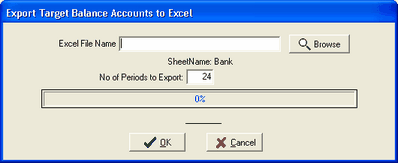
Excel File Name - Enter the file name or press the Browse button. If the user is going to use a new Excel file, it must be created in Excel first. When the export is requested, the system will create a sheet name within the spreadsheet called Bank.
No of Periods to Export - Enter the number of months you wish to export.
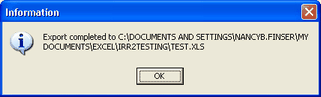
Press OK. The excel spreadsheet cannot be open when the user exports the data or a "lock" message will appear. When the export is finished, the following information box will be displayed:
Open the Excel file and make your changes. Please adhere to the warning below.

Import Account(s) from Excel
When all changes have been made in the export file above, the user can import the Excel file back into the target balances. Right click on any account and select Import Account(s) from Excel. The following screen will be displayed:
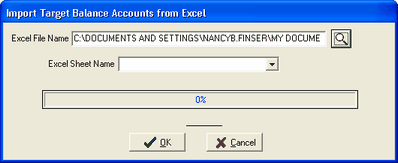
Excel File Name - Enter the path of the Excel file that will be imported.
Excel Sheet Name - Enter the sheet name of the Excel spreadsheet that will be imported.
Press OK. The system will import the account or accounts that was previously exported which contain the changes made to the target balances. The system will update the current target balances with the imported Excel file.
Reset ALL Accounts to Current Balance

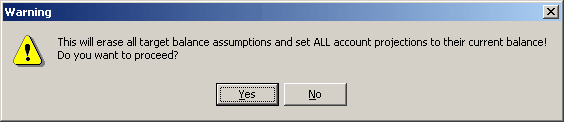
The following warning message will be displayed.
Find Account By Description
This tool will help the user quickly find a specific account in their chart of accounts, based on the account's description in the model. In any screen which displays the Chart of Accounts, right click on the chart. There will be an option on the popup menu, "Find Account by Description". The location of the option on the popup menu will vary, due to other options available in the selected screen. This tool is found in the various modules of the IRR system.
By right clicking on the chart and selecting Find Account By Description the following screen will be displayed.
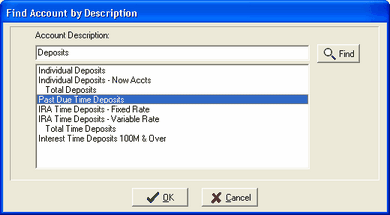
Account Description - A dialog box will appear which will allow the user to type in all, or part of the description for the account. Clicking the Find button will display all accounts containing the description typed. Subtotal accounts will be displayed as well as accounts.
In the above example, the text to be searched for can appear anywhere in the description. Select the account from the list of accounts and click the OK button. The Chart of Accounts will automatically expand and highlight the selection as shown below.
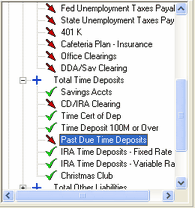
This tool allows the user to go directly to a specific account or subtotal account in the chart, and should save time and effort to locate specific accounts the user wants to work with and/or review.