The Budget Sets tab displays four data areas. The box displayed in the upper part of the screen displays all saved budgets. The Save Projections to Budget is used to save the current processed assumptions into a budget set. The Upload Budget To Host System section allows the user to upload budget information to the Host system. The Copy Budget to Different Institution section allows the user to copy a revised budget from one institution to another.
When the Budget Sets tab is selected, the following screen is displayed:
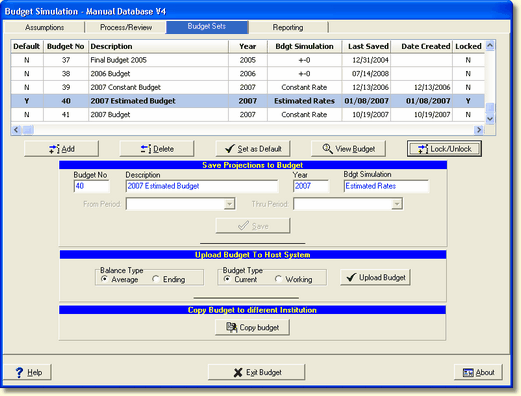
Default - This field will display the budget set flagged as the default set. The default budget will be displayed in bold.
Budget No - The Budget number is the identifier of the budget set to the system. This is an internally generated number. The system will generate the next available budget number when creating a new budget set.
Description - This displays the description of the budget set. We suggest you make it descriptive enough to easily identify the set in a list of multiple sets.
Year - This field represents the Budget year saved.
Bdgt Simulation - A budget set can be specific to a selected budget simulation.
Last Saved - This displays the date the budget data was saved as a set.
Date Created - Date budget set was created
Locked - The budget set can be locked to avoid accidental re-saving of projection data into the budget set.
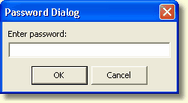
When locking or unlocking a budget set, a Password dialog box is displayed requiring the user to enter a password.
Add Budget
See Add and Save New Budget topic in the Budgeting/Budget Sets chapter for further details.
Delete Budget
This button allows you to delete an existing budget. The budget to be deleted is the currently selected budget in the grid.

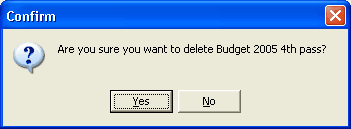
It is best to delete old budget sets as budget reports like Budget Variance do not work with last year budget set as default.
Set as Default
Any saved budget can be set as the default budget. When generating reports, the reports will be based on the default budget selected.
View Budget
See View Budget topic in the Budgeting/Budget Sets chapter for more detailed information.
Locked/UnLock
This function protects the budget set from being copied into by another institution. The button functions as a toggle of the locked state. When a budget is locked, the Delete button is disabled, not allowing the user to delete a locked budget.
Save Projections to Budget
See Add and Save New Budget topic in the Budgeting/Budget Sets chapter for further details.
Upload Budget To Host System
The budget upload function allows the user to update the current year budget amounts and the working or original budget amounts automatically on the Host system with the budget data in IRR-Solutions® II.
Balance Type - The selected default budget data can be uploaded to the Host with Average or Ending balances.
Budget Type - The default budget data can be uploaded to the Host to either the current year budget fields or the working budget fields for JHA 20/20 Banks; or the budget current fields or the budget original fields for the JHA SilverLake Banks by selecting the appropriate radio button.
Upload Budget - This will upload the default budget data directly into the general ledger master file on the Host.
Copy Budget to Different Institution
This function allows the user to copy a revised budget from one institution to another. See the Copy Budget to Different Institution topic for detailed information.