When all assumptions and projections have been processed in the Process/Review tab and you are satisfied with the results of the simulation, budget sets can be created and saved.
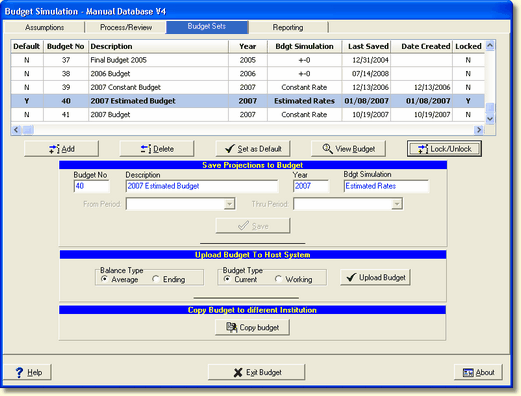
On the Budget tab, you can create a new budget set by selecting the Add button. The following screen will be displayed:
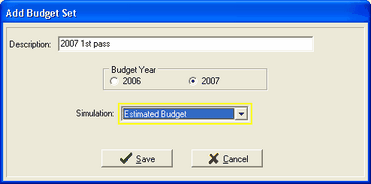
Description - Enter the name of the new budget.
Budget Year - The budget year is displayed for the current fiscal year and for next fiscal year. Select the year for the new budget.
Simulation - Select the simulation used to produce the new budget.
When the SAVE button is pressed, the new budget will be listed last in the grid as shown below. The system will set the new budget as the default budget. You will notice in the Last Saved column it will say Never. Remember, you are only creating the budget set at this point, there is no data in the set yet.
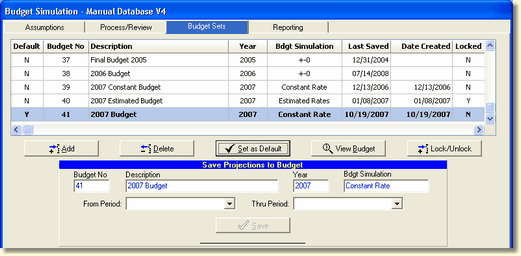
The next step is to save the projections created in the Process/Review tab to the new budget set created above. Go to the Save Projections to Budget box on the Budget tab and enter the From Period/Thru Period timeframe the budget covers.
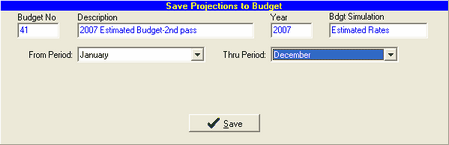
The fields in blue across the top of the Save Projections to Budget box are in blue and cannot be changed.
From Period / Thru Period - Enter the starting period of the information to save and the ending period for which information will be saved.
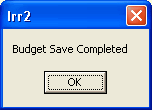
When the SAVE button is pressed, you will be able to see the status of the save as the system saves the projected data. A dialog box will be displayed when the Budget save is completed as shown below.
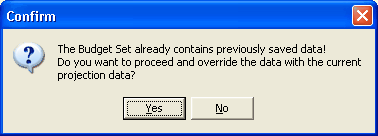
If you are attempting to save budget data to an existing budget set, a confirmation box will be displayed warning you that you are about to overwrite data as shown in the confirmation box below:
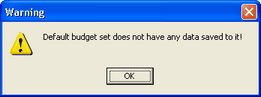
If you fail to enter the From Period / Thru Period timeframe and exit the Budget tab without saving the projections to the new budget set, the following warning screen will be displayed informing you that the default budget does not have any data saved to it. The Last Saved date will remain as Never until the projections are saved to the Budget set.
When you have saved the projections to the newly created Budget set, the Last Saved date now changes to the current date as shown below. Your Budget set now contains the saved projections.
Revising a saved budget during the planning stages
If you want to revise a saved budget set you can change the assumptions and re-save a budget set without creating a new budget set.
In the sample screen above, after the new assumptions have been entered and processed, go to the Budget Sets tab, select the budget set you wish to re-save in the top grid. Select the From Period/Thru Period months and select Save in the bottom grid. Changes will only be made to the months selected. The budget set will be revised with the new assumptions.
When making assumption changes to revise a budget set, careful consideration must be made as to the relationship of the other assumptions not being changed in the budget set.
Revising a saved budget in a budget year
See Copy Budget to Different Institution for detailed information.