Caution must be used if you elect to revise a budget set once you are in a budget year. Editing account balances within a budget will always cause an out-of-balance condition in the budget, because any change would need to be re-calculated through to Net Earnings, Fed Funds, and Year-to-Date income in order to keep the budget in balance.
One way to revise a budget is to maintain the institution and state of the underlying data at the time the budget was saved. Any revisions to the budget need to be made to the original projections that were the source of the budget.
The mechanism to maintain the institution at the time the budget was prepared and to allow the user to revise and update the default budget is to allow the user to copy the final budget and underlying data to another institution.
Prior to copying a revised budget, certain steps must be taken. Immediately after the initial budget is finalized and a budget set is saved, user must create another institution to hold the final budget and underlying data. This institution will be referred to as the Source institution. This will be the institution in which budget revisions will be made.
| 1. | On the Institution Selection screen, select the Add Institution option and create a duplicate of the current institution (called Target institution). Name the institution so that you will know this is the source institution and will be used for budget revisions. Ex: Budget Master or Budget Source, etc. |
| 2. | Select Copy Institution on the Bank Selection screen and copy from the Target institution to the source institution. |
| 3. | Make your budget revisions in the Source institution. It is recommended to add a new revised budget set and copy the revised projections into it. This preserves the original budget. |
| 4. | After the revisions have been entered and saved, it is highly recommended to Lock the revised and original budget sets in the Source institution. This will prevent a user from copying a budget in the wrong direction. |
Account Cross Reference
Before starting the copy budget process, make sure you are in the Source institution.
Prior to copying a budget, the Account Cross Reference to the Target institution is verified. In order to perform a proper copy, the Source and Target institution accounts need to have been cross referenced. The Source institution can be cross referenced to any number of Target institutions as needed.
The Account Cross Reference screen provides the ability to configure a cross reference of accounts between the Source and Target institutions. Even though the Target institution is most likely a copy of the original budget institution, new accounts could have been added in the Target institution that do not exist in the Source institution. Theoretically, a budget can be copied to a totally different institution simply by defining where in the Target institution the Source budget balance should be cross referenced.
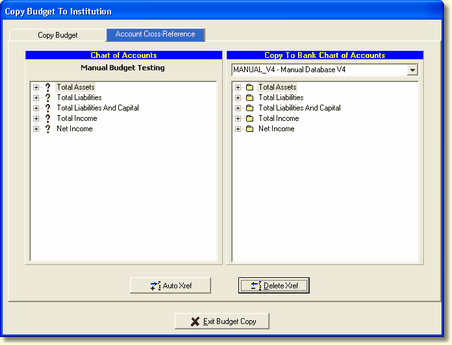
Selecting the Account Cross Reference displays the following screen.
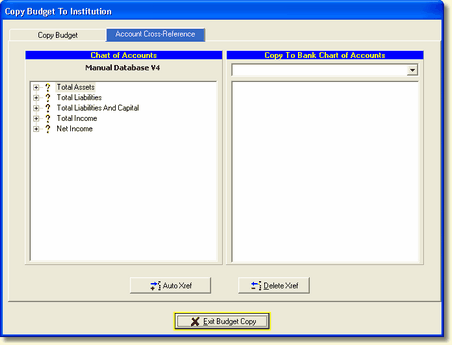
The Source institution's Chart of Accounts will display red check marks indicating accounts with no assigned cross reference. To cross reference the Source institution to the Target institution, select the Target institution from the drop down box on the right. The following screen will be updated with the Target institution's Chart of Accounts.
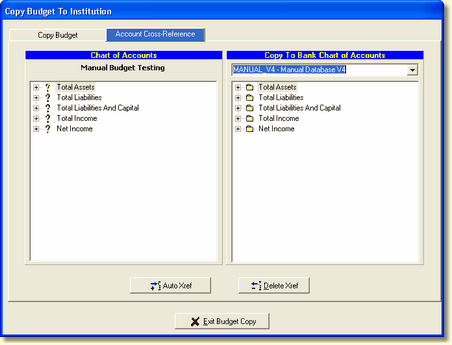
AutoXref - Select the AutoXref function at the bottom of the screen to start the cross reference process. In order to simplify the process of cross referencing, the AutoXref performs a matching of account descriptions and balance sheet type (Assets, Liabilities, etc.) and generates a cross reference between matching accounts.
When the process is completed, the message box below will be displayed.
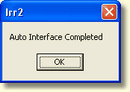
Select OK and the cross reference is complete. If any red question marks remain in the Source institution on the left, the system will not allow the user to copy the budget to the Target institution.
The accounts with question marks indicate the same account in the Target institution is missing. The accounts in question can either be cross referenced to an existing account in the Target institution by dragging and dropping or the missing account in the Target institution will need to be set up and then cross referenced to the Source institution.
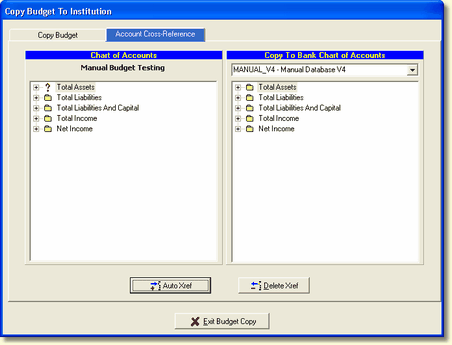
Delete Xref - This function allows the user to delete an existing cross reference. The system displays a warning message to verify that is what the user wants to do.
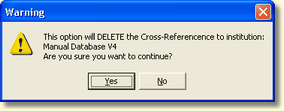
After selecting Yes, the system returns the red question marks to the Source institution's Chart of Accounts on the left side.
Copy Budget
The Copy Budget performs the transfer of the default budget from the Source institution to the Target institution. Once the Target institution is selected in the list of cross referenced institutions, the budget sets in the Target institution are displayed as shown below.
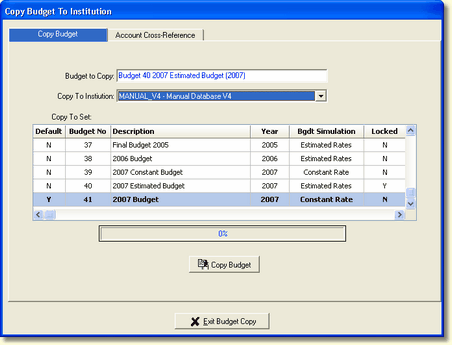
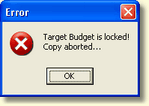
When the Copy Budget function is selected at the bottom of the screen, it will perform the copy of the default Source budget set into the selected set in the Target institution. The budget set in the Target institution does not have to be the default set. However, the system will not allow a copy to proceed if the Target budget set is locked. If the set is locked, an error message box will be displayed as shown below.
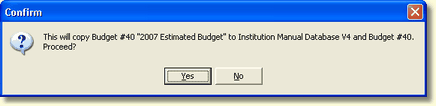
If the system allows the copy to proceed, a confirmation dialog box will be displayed. The user needs to confirm that this is the budget set they want to copy.
When the copy is done, a message box is displayed.
