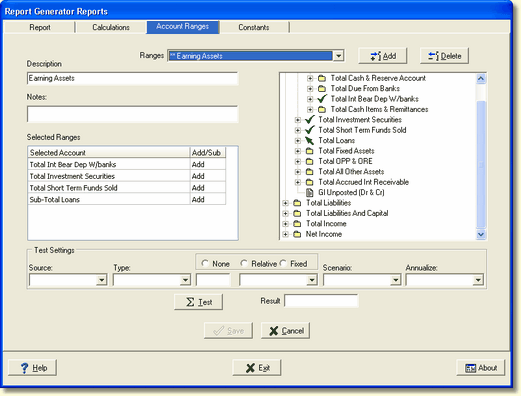
Account Ranges are the next higher level of components. This component defines the source of the data value to be retrieved. Each range retrieves only a single value. However, the period specified in a range can be overridden by the report column, therefore allowing a single range to be used multiple times for retrieving a value for different time periods, data types, and data source.
Ranges
Ranges are the list of currently defined account ranges in the drop-down list. To edit an existing range, select it from the list.
Add
Selecting the Add button places the dialog box in the Add Range mode. All selections are cleared allowing the user to define a new range.
Delete
This allows you to delete a defined range from the list of available ranges. In order to delete a range, select it from the list of available ranges. The following confirmation message will be displayed
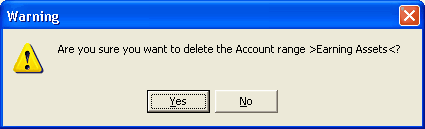
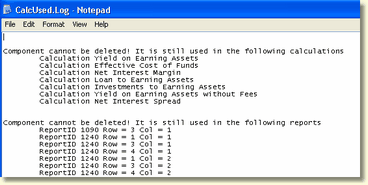
If a range is being used by a calculation or a report definition, it is not allowed to be deleted. In order to proceed with the delete, it will have to be removed from every place it is referenced.
In our example, the range is used in the following calculation.
Description
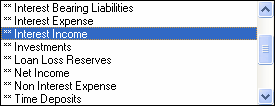
The title of the range. Ranges are sorted by their description in alphabetical order. We recommend that you consider a logical naming convention when creating a number of ranges.
Do not start the description with **, this is reserved for the ranges FinSer sets up for the report generator reports.
Notes
This is a free-form user defined area.
Selected Ranges
This grid defines all the accounts or account ranges to be summed when retrieving the final result. This box defines all selected ranges as a separate line item.
However, if you select a subtotal account and wish to exclude an account in that subtotal range, you will need to select each individual account in the subtotal range, excluding the account you do not want included.

All values are summed together. To subtract a range of accounts from another requires each range to be defined separately and to be subtracted from one other in the calculation.
Test Settings
This is a convenient way to verify the defined range and desired data to be retrieved. Once all required parameters are selected, the Test button can be selected to retrieve the data result. Choosing the Test button when missing a required selection parameter will display a self-explanatory error message.

See Data Definition for an explanation of all the available data options.
Save
Save the currently defined range. Before a save takes place, all required selections are verified. Self-explanatory error messages are displayed for missing selections.