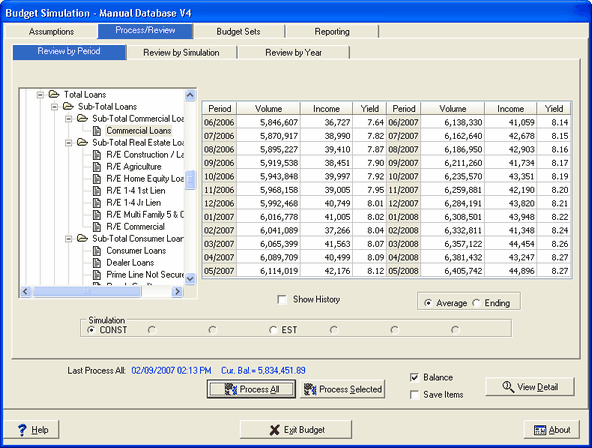
An explanation of the Processing screen is shown below:
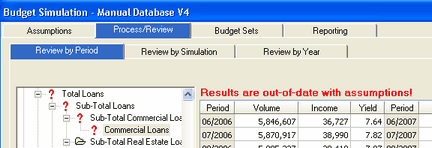
The system will recognize there have been assumption changes made and will display a warning message on the Process/Review tab displayed in red "Results are out-of-date with assumptions!" as shown below. You will need to process before any of those changes will take affect.
To process results, the system provides two options.
Process All - This button will perform a complete processing of the chart of accounts. Progress messages are displayed throughout.
During the processing, the system relies on all the detail information it downloaded during the capture process to perform very accurate income calculations. All factors influencing the income, such as rate changes, rate constraints (periodic limits or life time caps and floors) are taken into account during the calculation process.
The date and time of last Process All is displayed at the bottom left of the screen. This will let the user know when/if they processed the advanced modules after capture or changes.
Process Selected - If only selected assumptions were changed that affect only certain accounts, the Process Selected option can be used. With this option, the selected account and all accounts contained within the account will be processed.
Another step in processing is balancing to your Fed Funds
Balance - The balance check box, which is checked by default, will cause the system to perform the balancing process of the complete chart of accounts. The "Fed Funds Sold" and "Fed Funds Purchased Account" will be used as the balancing mechanism. To balance, a Fed Funds position is determined, Income or Expense is calculated for the chosen Fed Funds. This Income or Expense changes the Net Income position, which flows back into the Current Profit account. This process is repeated until the total chart is in balance by less then $0.01.
To save processing time, the Balance check box can be unchecked during what-if analysis, when the effects of assumptions on selected accounts are studied. This will skip the balancing process.
Save Items - The system can produce item detail of the reinvestment assumptions when this box is checked. The box is only active when an account is selected. Only use this feature when Process Selected is used. This box is used in conjunction with the View Reinvest Item Detail when the View Detail button is selected on the Process/Review tab.
See View Reinvestment Item Detail topic in the Budgeting/Process/Review/View Detail chapter for further detail.
Appl Outage - The general ledger is out of balance to the selected application file. This is an information only field. When a GL outage occurs, the item balance on the GL differs from the item balance of all the detail in IRR2. If the application is out of balance to the GL, it will be located above the Process Selected button in a blue font.
This should be researched as to why the application is out of balance to the general ledger.
Find Account By Description
The option Find Account can be found if you right click on any account in the chart of accounts. This will help you quickly find a specific account in your chart of accounts.
See Target Balance Options in the Advanced Income Shock module for the Find Account details.