We are ready to populate the cells.
 Main Menu | Reporting | My Reports (select report) | Edit button | Cell Definition
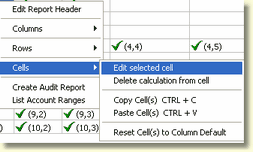
To place the calculations in the cells, we start by selecting the cell and right clicking. In the pop up menu below, we will select Cells and Edit selected cell.
The Cell Definition tab will be displayed:
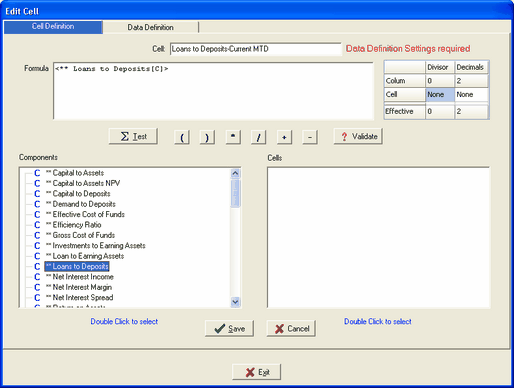
The Cell box displays the row/column you have selected. We are setting up the Loans to Deposits ratio in this cell.
We have already set up the calculation that makes up the ratio - Loans to Deposits in the Calculations tab as a single component.
The simple choice here would be to double click the component called Loans to Deposits. This will place the Loans to Deposits calculation in the formula box.

Press the SAVE button.
We have one more step to complete the cell set up. Select the Data Definition tab. See the Data Definition topic for further instructions.
Cell Definition-Test - When we have finished constructing the report cell, we can test the calculation of the cell by clicking the Test button. The results will be displayed in an information dialog box. The Cell Definition and Data Definition must be completed before you can test the calculation.
Cell Definition-Validate - The Validate button will confirm there are no syntax errors in the entered formula.