 Main Menu | Advanced Income Shock | Process/Review | View Detail
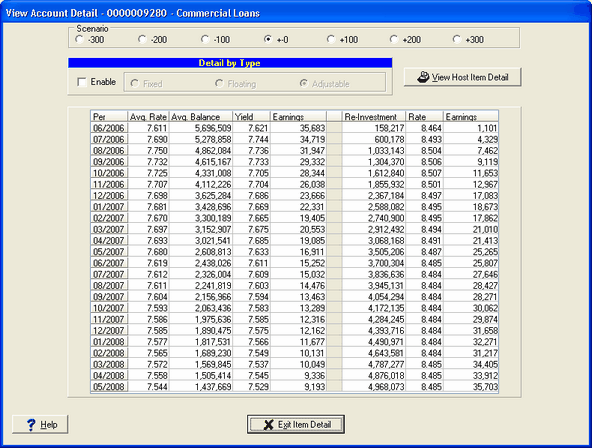
After selecting the View Detail button, the View Account Detail summary of the selected account is displayed as shown below.
Export Data
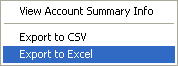
All of this data can be exported to other applications for presentation or other purposes. The file can be exported as a "CSV" (comma separated value) file or to an Excel file. Simply right click anywhere inside the grid area and select one of the two options below:
View Account Summary Info
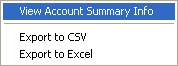
See the Account Information Tools topic in the Advanced Income Shock/Reinvestment Rates/Assumption Interface chapter for an explanation of this feature.
Scenario Selection
All information displayed is based upon the currently selected scenario in the radio box. To switch the view, simply select a different scenario. The default is the no change scenario.
Detail by Type
By default (Enable is unchecked) the information displayed is a summation of all the items in the selected account. However, by checking the Enable check box, the resulting runoff and reinvestment information can be displayed by item type (fixed, floating, adjustable.)
The information in the grid is divided into two sections. The left hand side shows the runoff information for the items currently on the books in the account selected as shown in the example above.
Avg. Rate - This is the weighted average rate of all the items still active in the given period.
Avg. Balance - This is the average runoff balance of all the items in the account. This balance takes into account the day a particular instrument's payment is received.
Yield - The yield is the resulting return of all the items based upon the current payments and payment day basis.
Earnings - This is the resulting income from all the items in the given period.
The right hand side shows the system reinvestment information based upon the assumptions the user made.
Reinvestment - This amount is the amount calculated to return the account's balance to the target volume selected by the user. Negative amounts in this column could indicate that the user decided to shrink the account past the normal runoff.
Rate - Rate is the reinvestment rate as determined by the user. Typically, this rate will differ across the scenarios to simulate the impact of the rate shock environment.
Earnings - This column is the earnings produced from the reinvestment amount given the reinvestment rate.