 Main Menu | Advanced EVE | Process/Review | View Detail
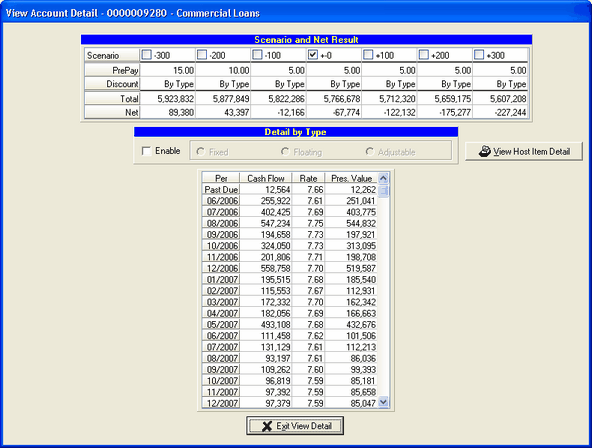
After selecting the View Detail button, the View Account Detail summary of the selected account is displayed as shown below:
Export Data
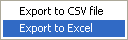
All of this data can be exported to other applications for presentation or other purposes. The file can be exported as a "CSV" (comma separated value) file or to an Excel file. Simply right click anywhere inside the grid area and select one of the two options below:
Scenario and Net Result
All information displayed is based upon the currently selected scenario in the radio box. To switch the view, simply select a different scenario. The default is the no change scenario.
PrePay - This displays the prepayment assumptions for the account. If the assumption is split by type then the display of those assumptions will say "By Type."
Discount - This shows the discount rate assumptions for the account. If the assumption is split by type then the display of those assumptions will say "By Type."
Total - Displayed are the total dollar valuation at each shock level from the Process/Review tab.
Net - The system displays the net value at each shock level from the Process/Review tab.
Detail By Type
By default (Enable is unchecked) the information displayed is a summation of all the items in the selected account. However, by checking the Enable check box, the resulting runoff and reinvestment information can be displayed by item type (fixed, floating, adjustable.)
Detail Results by Period
Cash Flow - This shows the cash flow for that period (including maturity and interest flow.)
Rate - This is the weighted average rate of the dollar volume
Pres. Value - This displays the present value of the total cash flow discounted by the discount rate associated with the shock level selected in Scenario and Net Result. The sum of the present values over all of the time periods for an account will equal the Total figure under the shock level selected in Scenario and Net Result.
The information displayed in the Detail Results by Period area is based upon the currently selected scenario. To switch the view, simply select a different scenario.