 Main Menu | Advanced EVE | Process/Review | View Detail | View Host Item Detail
Detail by Item
To view the results on a selected application item, such as an individual loan or CD, click the View Host Item Detail button on the View Account Detail screen. Depending upon the selection of the Detail by Type (Fixed, Floating, and Adjustable) section, either all or just the selected type of items are loaded for selection.
The information shown is for the currently selected scenario. To switch to a different scenario, simply make a selection in the Scenario radio box.
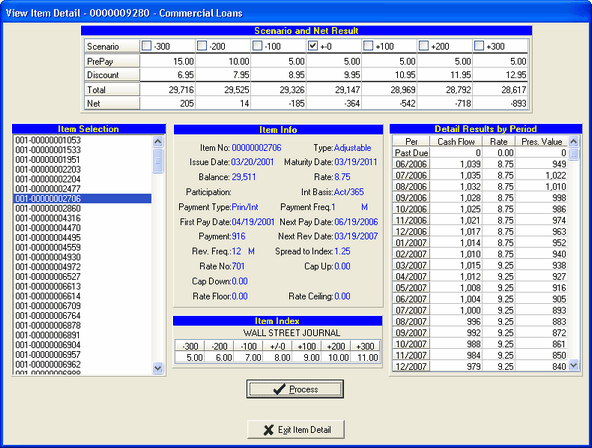
The View Item Detail screen is made up of five sections; Scenario and Net Result, Item Selection, Item Info, Item Detail, and Item Index. Each section will be explained below.
Scenario and Net Result
All information displayed is based upon the currently selected scenario in the radio box. To switch the view, simply select a different scenario. The default is the no change scenario.
PrePay - This displays the prepayment assumptions for the item.
Discount - This shows the discount rate assumptions for the account.
Total - Displayed are the total dollar valuation at each shock level from the Process/Review tab.
Net - The system displays the net value at each shock level from the Process/Review tab.
Item Selection
In the example above, all items in the account are listed. The item's identifying number, such as a particular loan number, sometimes also called the account number, is displayed in the left hand box.
Item Info
Once an item is selected in the Item Selection section, the item's detailed information is listed in the Item Info section in the middle of the screen.
Detail Results By Period
Cash Flow - This shows the cash flow for that period (including maturity and interest flow.)
Rate - This is the weighted average rate of the dollar volume
Pres. Value - This displays the present value of the selected item discounted by the discount rate associated with the shock level selected in Scenario and Net Result. The sum of the present value over all of the time periods for the selected item will equal the Total figure under the shock level selected in Scenario and Net Result.
Item Index
Only items with a type of Adjustable or Floating will display data here. The index name is displayed as well as the index rate for each scenario. Fixed rate items will not display any data in this section.
The Process button is used to calculate the cash flow for the item selected and will display the data in the Detail Results By Period grid and the Total and Net in the Scenario and Net Result grid.