 Main Menu | Reporting | My Reports
To access the Stratification Setup button select Stratifications in the Group Filter drop-down box. Select the report that you wish to change and press Edit.
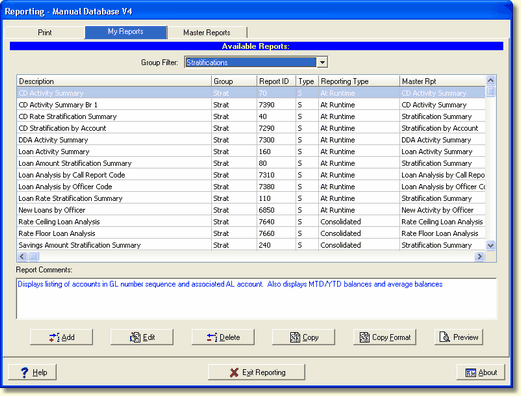
The Stratification Setup button is located in the lower right corner of the screen below. This feature lets you set your stratification balances by dollar or interest rate ranges for all application items. You have unlimited number of stratification levels available to you.
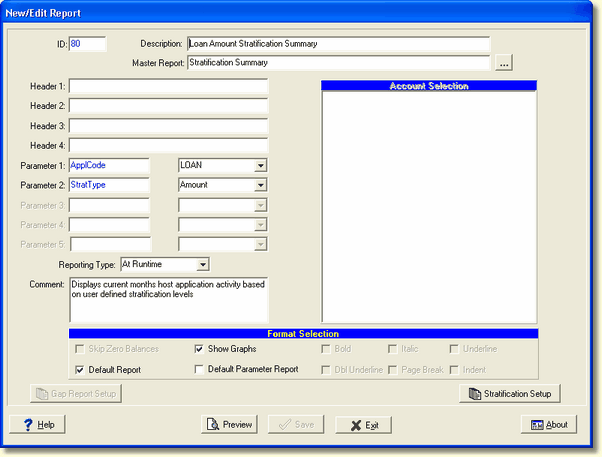
When you have selected the Stratification Setup button, the following screen is displayed:
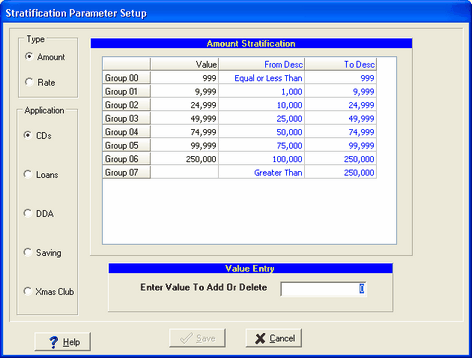
Type
Amount - Select the Amount radio button to display the Amount Stratification box to the right. You can designate the dollar volumes for the breakdowns on your stratification reports. There is no limit for the number of stratification levels you can set up.
Rate - Select the Rate radio button to display the Rate Stratification box to the right. You can designate the interest rate volumes for the breakdowns on your stratification reports. There is no limit for the number of stratification levels you can set up.
Application
Select the application you wish to display or change by clicking on the appropriate radio button.
Amount/Rate Stratification
The Amount or Rate Stratification box displays the group number and its associated stratification level.
Value - Items in this column can be added or deleted. The data is displayed in a black font which means it can be changed.
From Desc/To Desc - These columns show you the amount/rate range for that group or value. The font is blue which means those columns cannot be changed, they are read only fields.
Value Entry
The Value Entry box is used to add or delete the levels of stratification.
Enter Value to Add or Delete - Enter whole dollar amounts and enter rates with decimal points. The value keyed into Group 00 will always result in a figure equal or less than the value.

Entering a new value - If you need to enter a new value not currently displayed in the Amount/Rate Stratification box, enter the new value in whole dollar amounts or rates using a decimal point and press enter. You will enter the high-end value of the range. The low end of the range is computed by the system automatically based upon the existing ranges.
For example: If you are entering "3500" in the screen above, the From Desc/To Desc columns will display "3001-3500."
The system will assign the new value a group number and will be inserted numerically into the box. The From Desc/To Desc columns will display the new dollar/rate range.
Deleting an existing value - If you need to delete an existing value, simply enter that value and press the enter key. The system will re-sort the group numbers and remove that value.
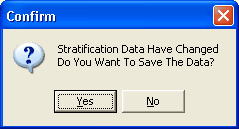
If changes have been made to the stratifications and you move from the area that was changed, the system will display a confirmation message dialog box asking you if you want to save the changes. The message dialog box is displayed below:

To Reprocess
Main Menu | Data Capture
Under Capture Type select Process Only. Select only the applications which had changes made to the stratification file.
To de-select all applications quickly, right click anywhere on the screen and select Uncheck All. Then select the applications you want to re-process. After the re-processing is completed you can reprint your Stratification Reports again.