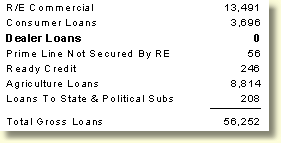
Setting up Rows is the fourth step in creating a Report Generator report.
Right click anywhere in the design portion of the report grid to access the report design pop-up menu.
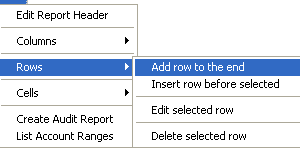
Select the appropriate function to add or edit a row. This will display the Report Row Design dialog.
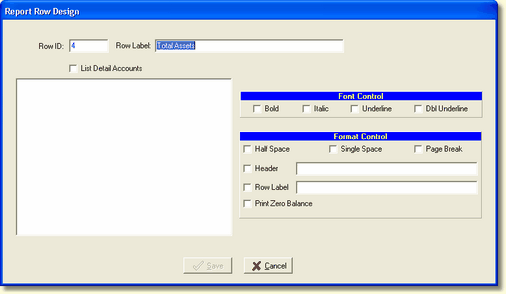
Row Label - Enter the Row title. The Row Label will be what is displayed down the left side of the report.
List Detail Accounts - This check box is only used for the 5 top level G/L account subtotals. The top level subtotals are shown in the example below. The check box cannot be used with cell calculations or constants.
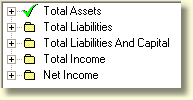
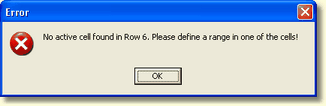
NOTE: Before checking this box, if the user will be using one of the 5 top level G/L account subtotals in the cell, the cell must be set up first before the user can check the List Detail Accounts box to display the accounts in the subtotal or the error message below will be displayed.
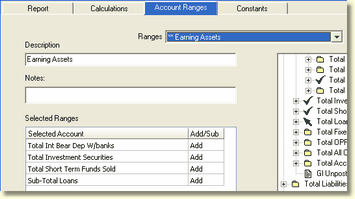
If an account range in the cell contains multiple account components, for example Earning Assets in the sample below,
and the user tries to check the List Detail Accounts box in the Report Row Design screen, they will receive the following error message
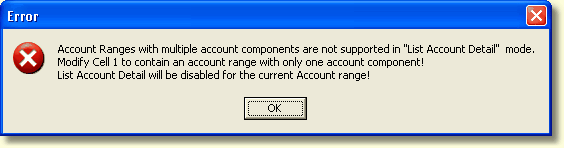
Separate rows will need to be set up for each component in the Earning Assets account range.
Font Control
Bold - This control will bold the account selected in the tree view, if a tree view is not visible, the text in the Row Label field.
Italic - This control will italicize the account selected in the tree view, if a tree view is not visible, the text in the Row Label field.
Underline - The underline is placed above the selected account, starting in the first column, as a totaling line.
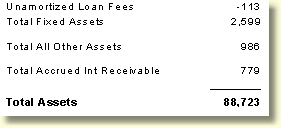
Dbl Underline - The double underline is placed below the selected account, starting in the first column, this is the final total in this section of the report.
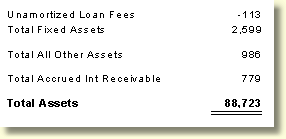
Format Control
Half Space, Single Space, Page Break - All three format controls are placed after the selected account.
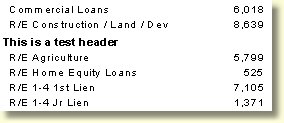
Header - This header text will be placed in a new row above the selected account.
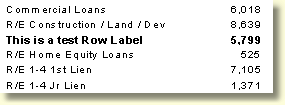
Row Label - Text in this row label will replace the selected account label.
Print Zero Balance - Selecting this format will print the selected account if it has a zero balance.