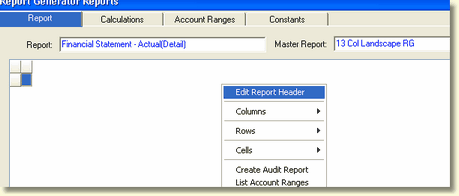
The second step in creating a Report Generator report is to design the report header. In the design grid, access the Design Report Headers screen by right clicking anywhere in the design portion of the report grid and select Edit Report Header.
The Design Report Headers screen is displayed below.
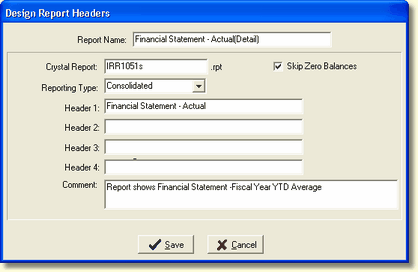
The Report Header defines various overall components of a report generator report.
Report Name - This is the name that will show on all the report selection grids. It is completely user defined.
Crystal Report - The new report will always start out based upon the default report template. Editing the Crystal Report .rpt entry will copy the default template to the custom report name and place it in the Bank's custom report directory upon saving.
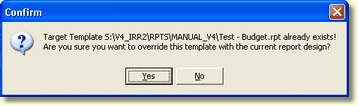
The Crystal Report template name is checked, if the report template already exists, the following confirmation message will be displayed.
Reverting Back to the Default Template
If the user decides they want to start over in developing the new report, they can change the report back to the default template. To change a report back to the default template, located in the root Reports directory, delete the entry in the Crystal Report .rpt field. The following confirmation box will be displayed.
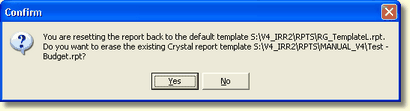
In the confirmation message above, if the user answers Yes, the Test - Budget.rpt report will be deleted and replaced with the default template - RG_TemplateL.rpt. If the user answers No, the Test - Budget.rpt report will remain in the Reports directory and the user will need to rename the new report differently.
Skip Zero Balances - This option, when checked, will skip any account whose reporting line contains all true zero balances. You may see all zeros show up, but that means the zeros came from a rounding calculation which makes it zero. This is useful to reduce reporting to only those line items with balances. If over time, a particular account acquires balances, it will automatically be included in the report.
Reporting Type - If you have selected to operate IRR-Solutions® II at the consolidated institution level you may only select consolidated in the drop-down box. You will not be able to select branches. If you have selected to run at the branch level, you may select each branch, or individual branches as well as consolidated. If regions are set up, reports can be printed by all regions or a individual region.
Header 1 - 4 - Every IRR-Solutions® II report contains five optional header lines. If no header information is specified by the user, Header 1 will contain the report name. Header 5 will always contain the institution name. The Header section allows the user to override the default report title and add additional information.
Comment - This field is user defined and can briefly explain what is contained in the report.