The first step in creating a Report Generator report is to add the template to the My Reports tab.
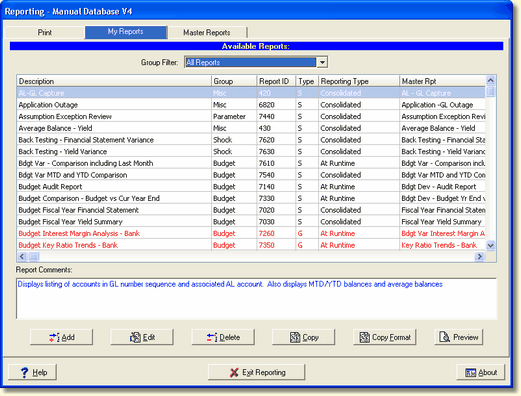
Select the Add button and the following screen will display.
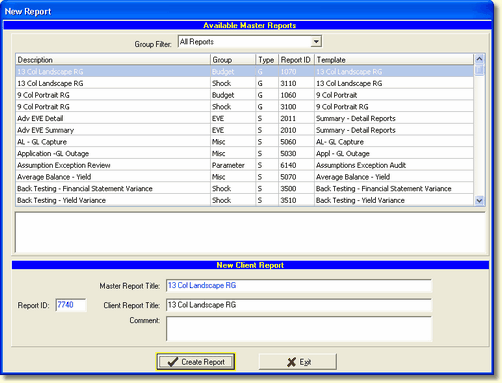
Select the appropriate Report Generator template, designated by the Type G. Template options to create a Report Generator report are:
9 Col Portrait report (group: Shock or Budget)
This report template provides report generator reports in portrait mode with a maximum of nine columns across the report.
13 Col Landscape report (group: Shock or Budget)
This report template provides report generator reports in landscape mode with a maximum of 13 columns across the report.
Make note of the Report ID number in the lower left corner. You will need this number to locate the newly created report on the My Reports tab when you are ready to edit the report.
Enter the title of the report in the Client Report Title: field. Comments may be entered to help describe the contents of the report. Select Create Report and the system returns to the My Reports tab.
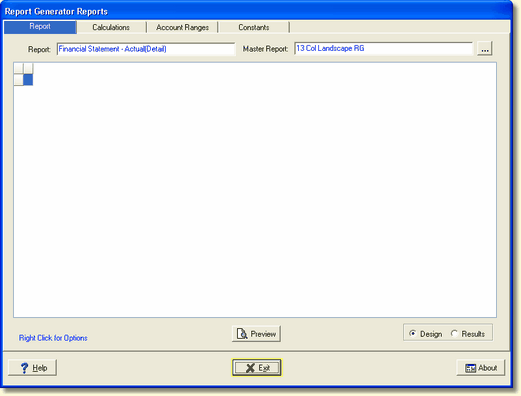
Select the new report created in the My Reports tab and select Edit. The following screen is displayed.
Continue to the next Chapter: Report Headers.