Once all components have been connected to the chart of accounts in the Chart Components tab, the pre-configured, standard ratios will be functional in the Ratio tab. Given that this module was designed to be customized for unique bank reporting, ratios may be added and customized. The most common way to develop a new ratio is to Add a ratio using the Add Ratio button, then copy an existing ratio to it. That established a baseline new ratio upon which customization can be built. See Add/Copy Ratio for details. Given the complexities of building new ratios, it is suggested to contact FinSer Support for assistance when adding new ratios.
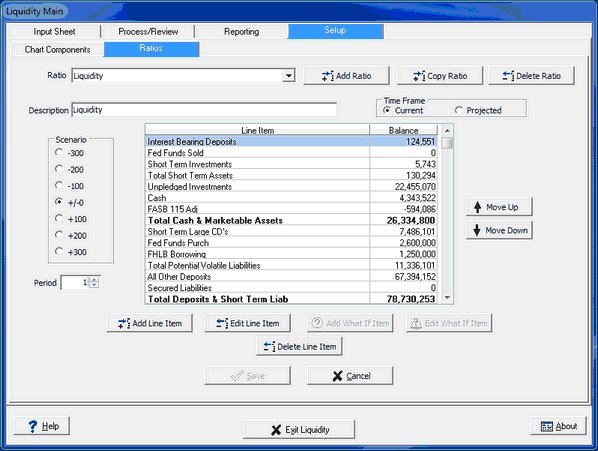
Ratio: Selection box to display an existing ratio as it is currently defined
Add Ratio: See Add/Copy Ratio topic
Copy Ratio: See Add/Copy Ratio topic
Delete Ratio: See Delete Ratio topic
Description: Description of selected ratio.
Time Frame: Depending on the type of ratio, the data can either use Current or Projected data from the model results in Advanced Income Shock for the ratio. Liquidity and Dependency ratios typically use current whereas Sources and Uses Projected Volumes uses projected results from Advanced Income Shock.
Scenario: Shock scenario for displayed ratio data. Default is +/-0
Period: Time period for displayed ratio data (1-24). Default is 1
Add Line Item-- See Add/Edit Line Item topic. Items added will display at the bottom and must be moved up or down to a desired position using the Move Up/Move Down buttons
Edit Line Item--used to edit a ratio line item. See Add/Edit Line Item topic
Add What If Item--for modeling various projections for stress testing the model Only available for ratios using Projected time frame data. See Add/Edit Line Item topic
Edit What If Item--used to edit an existing What If Line item that has been added to a ratio. See Add/Edit Line Item topic
Delete Line Item: Used to delete a line item in the ratio. Make sure the line item is not used in the calculation of another line item in the ratio
Move Up: Moves the selected line item up in the grid by one line for each click
Move Down: Moves the selected line item down in the grid by one line for each click