Every report shown on the screen will provide the user with the following toolbar controls to manipulate the display or control printing from within the preview window.
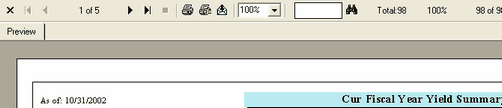
 - Selecting this control will close the report. This is equivalent to the overall windows control in the upper right hand corner of the window.
 - This area of the toolbar tells you how many pages are in the report you are viewing as well as the current page being viewed.

 - These controls allow the user to page back and forth between the pages of a report. The single arrow pages the report by a single page in the direction indicated. The arrow with the vertical bar will jump either to the beginning or to the end of the report.
 - This button on the toolbar control allows the user to print the report you are previewing to the currently selected printer. If no printer has yet been selected, the report will be printed to the Windows default printer.
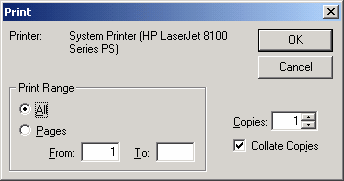
On the Print dialog that will be shown, you have the option of selecting All or selected Pages or multiple Copies.
 - This control allows you to change the default printer selection as well as configure certain properties of the printer, such as Orientation, Number of Copies, etc.
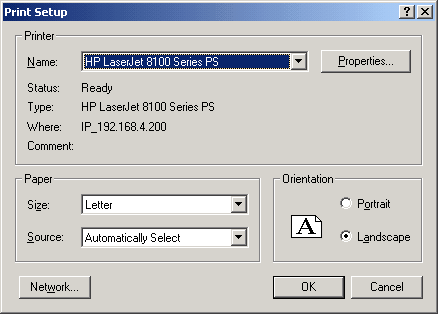
The Print Setup dialog will be shown. It allows you to select a different printer than the current default printer, configure printer properties such as duplex printing, etc. or change the Orientation of the page.
 - This is the export toolbar button.
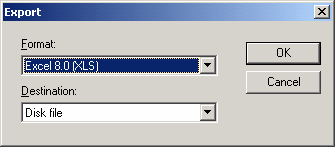
The Export dialog will be shown. Select the application type you would like to export to. A typical example would be exporting a report to Microsoft® Excel. The report generator will export all data from the report to the selected application. If you choose to export directly to the application, the report generator will even launch the selected application with the data just exported. There are approximately 35 different file formats.
 - This is the zoom area of the toolbar. You can zoom from 25% to 400%.
 - You can search for anything on the report. Enter your search criteria in the box and press the binocular button. If the information can be found, it will be highlighted in the report.
 - This area of the toolbar tells you how many records have been used to comprise the report. In most cases, the report displays summarized information.