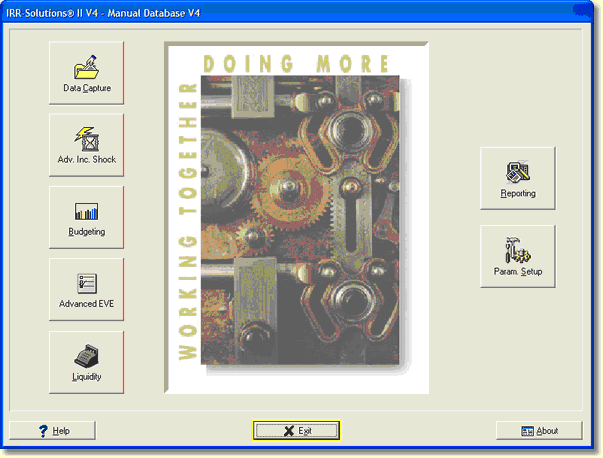
All components of the IRR-Solutions® II system are accessed through the Main Menu.
Data Capture
The Data Capture button displays the IRR Capture module. This option is used to access your Host system, Securities, and Misc. Data Entry . The IRR-Solutions® II system will copy and process all the item detail information from your host system.
Advanced Income Shock
The Adv. Inc. Shock button displays the Advanced Income Shock module where you can model future earning potential in seven user definable rate shock environments. You can adjust balance sheet volumes by using a variety of growth methods. Use this option to enter your prepayment speeds, set assumptions and perform "what-if" analysis. You will also use this option to process and review your assumptions for the Advanced Income Shock module.
Budgeting
The Budgeting button displays the Budgeting module where you can generate your budget. As in the Advanced Income Shock, you can adjust balance sheet volumes by using a variety of growth methods. You will be able to change reinvestment and index rates over time and project income in changing rate environments. Prepayment speeds can be set by periods. You will also use this option to process and review your assumptions for the Budgeting module and establish Budget sets for variance analysis.
Advanced EVE
The Advanced EVE button displays the EVE module that lets you model the net change in the economic value of your balance sheet in seven different rate shock scenarios. You can set your prepayment assumptions, discount rates, and index rates through this option. You can also use this option to process and review your assumptions for the Advanced EVE module.
Liquidity
The Liquidity button displays the Liquidity module where you can establish and customize various liquidity ratios, based on the Advanced Income Shock results. Reports include Current Liquidity and Dependency Ratios, Historical Liquidity and Dependency Ratios, Sources & Uses Projected Volumes, and Sources and Uses Projected Available Funds.
Reporting
The Reporting button displays the list of configured reports and master report list. You can configure the reports into relevant groups (ex.: Board Reports, A/L Committee, Loan Analysis by Officer Code) to give you maximum flexibility in meeting your reporting needs. You have the ability to be selective in choosing what general ledger accounts will appear on the reports.
Parameter Setup
The Parameter Setup button shows all the common parameters institutions would need to process and generate the reports. The parameters will be built for you when the system is installed. All parameters must be in place before the system can generate accurate results.
Exit
The Exit button will exit the institution and return to the Institution Selection screen.