 Main Menu | Reporting | Print
To edit an existing group, select it in the tree view and click on the Edit button in the group setup section, the following screen appears.
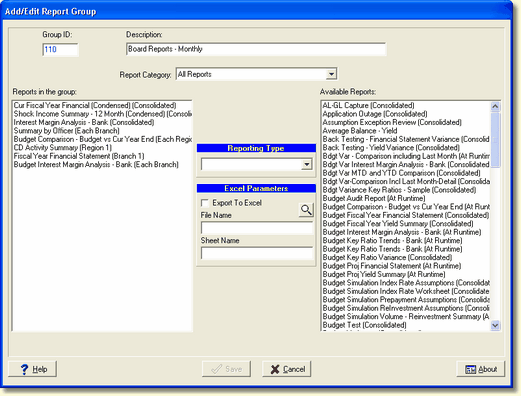
The Add/Edit Group screen will be displayed with the current group configuration. Simply edit the group by dragging & dropping reports from one side to the other.
Reports in the Group - To add reports to the group, simply drag & drop them from the list of Available Reports on the right side to the Reports in the group. The system will retain the reporting type which will be in parentheses next to the report description with the exception of "Runtime". Runtime will default to Consolidated when placed in the reports in the group box.
You can change the reporting type once it is placed in the Reports in the group box by selecting the Reporting Type drop-down box in the middle of the screen. If you change the reporting type setting, it will only pertain to the report in the group. It does not change the reporting type on the report in My Reports.
To remove reports from the group, drag them back from the Reports in the Group to the Available Reports.
Reporting Type - If you have selected to operate IRR-Solutions® II at the consolidated institution level you may only select Consolidated in the drop-down box. You will not be able to select branches. If you have selected to run at the reporting level, you may select Each Branch or the individual branches as well as Consolidated. You can set a report to print/preview only by Consolidated or branches but you can also set the reporting type to Runtime, which will cause a Reporting Mode screen to be displayed each time you print/preview and you can decide at that time which you would like to see; by consolidated or by branches. The previous runtime setting (consolidated or branches) will remain the next time you select the report to print/preview so that you can quickly print or preview the report. Runtime will not be enabled if the institution is running in consolidated mode. If regions have been setup, reports can be printed by all regions or individual regions.
Excel Parameters - These parameters are used to export a Report Generator report to Excel. If a Standard report is selected in the Report in the Group listing, the Excel Parameters are dimmed out.
Export to Excel - Check the box to export the selected report to Excel.
File Name - Enter the Excel file name.
Sheet Name - Enter the sheet name of the Excel file.
Available Reports - This is a list of all available reports if the report category is set to All Reports.. After the description of each report, in parentheses is displayed the reporting type. It will show whether this report will print/preview by consolidated, branch, region, or at runtime.