Now that we have selected our account ranges, we must now construct our calculations.
 Main Menu | Reporting | My Reports (select RG report) | Edit button | Calculations
Calculations can be developed by using components from calculations, account ranges, and constants. In our report, we will be using account ranges and constants to develop our calculation for Loans to Deposits.
After the above path has been selected, the following screen is displayed:
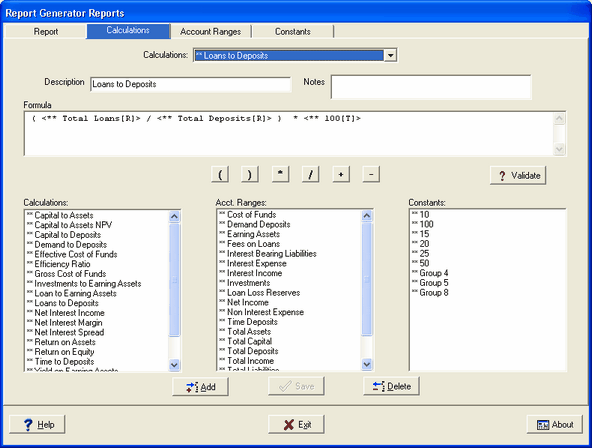
Add button - To add a calculation, press the Add button. Entering data into this screen before pressing the ADD button will result in an error message. The ADD button must be pressed first for each calculation that needs to be set up.
Description - Type in a description of the calculation to be added. As described in the Report Component chapter, a description can be developed with a logical naming convention for ease in identifying the calculation. Here, we are adding a calculation for Loans to Deposits. This calculation will be MTD Average Net Loans divided by MTD Total Average Deposits. This result will be multiplied by "100" to obtain a percentage.
Notes - You may add any text to the notes area that may help you to explain the account range. This is a free-form user defined area.
Formula Window - In the Acct. Ranges window, we select Total Loans. Drag the account range to the Formula window. Next we select Total Deposits and drag the account range to the Formula window.
To convert the ratio results to a percentage, we will select the "100" constant by clicking and dragging it into the Formula window.
Math Operator - Insert the divisor operator between the two account ranges and the multiplication operator after Total Deposits by clicking on the appropriate math operator below.

Validate button - When we have finished constructing the calculation, we should validate the formula to make sure the constructed calculation is in a proper mathematical format.
Save - Click SAVE to save the calculations.