The following screen displays the Select Institution screen:
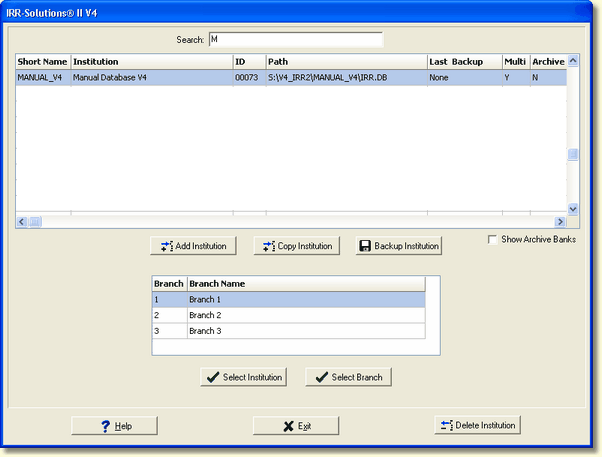
Backup Institution
Select the institution you wish to backup and press the Backup Institution button. The system will display a confirmation message dialog screen. It will tell you the database selected will be backed up to the directory listed in the message.
If the feature "Dated Backup Folders" in the Param. Setup module under the Bank Info tab is checked, the backup will create a dated folder containing the backed up database file. If changes are made during the day and the user wishes to backup the database again, the Backup Institution will replace the file backed up earlier in the day.
If the user makes changes to the database the next day and wishes to back up again, the Backup Institution option will create a new dated folder for the current day containing the backed up database.
If the feature "Dated Backup Folders" in the Param. Setup module under the Bank Info tab is not checked, the backup will overwrite the previous backup regardless of when the previous backup was done, allowing only one backup to be maintained.
The Backup is performed by the user and is recommended whenever changes have been made and/or monthly processing is done.
Press Yes to start the backup process. Below is the confirmation message dialog screen:
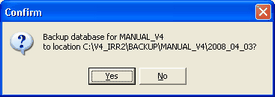
After selecting Yes on the Confirmation dialog box, you will see a progress bar showing the status of the backup.
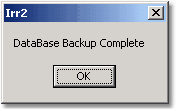
After the backup has finished, an information message dialog screen will be displayed. Press OK and the backup is done and the Last Backup column will be updated with the current date.
If you do not get the message dialog screen below and the backup seems to be running a long time do an ALT-TAB. This will display each of the applications currently running on your desktop. The ALT-TAB should bring the dialog box up so that you can click OK. If you were in another application while the IRR-Solutions® II backup was running, the Database Backup Complete dialog box sometimes is present behind screens on your desktop.