The process to request cash flow information from FinSer involves several steps.
1. Updating Book Values on current investment inventory
2. Updating Investment Inventory in Security Maintenance
3. Sending Request for Security Information to FinSer
4. Downloading Security Information from FinSer
Security Maintenance
 Main Menu | Data Capture | Security Maintenance
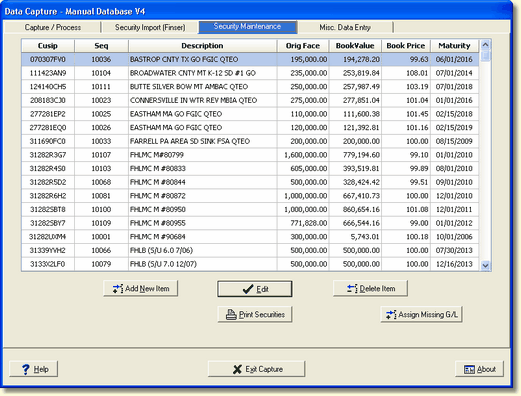
For FinSer to deliver cash flow information on your investment inventory, the inventory has to be identified to FinSer via industry standard cusip numbers. This is all that is needed for FinSer to compute cash flows based upon -300 through +500 shock scenarios incorporating market consensus prepayment estimates for Mortgaged Backed securities.
In order for IRR-Solutions® II to consider the current amortization position, the book values for all securities must be updated each month. This information comes from your investment accounting provider.
To request information based upon your institution's current inventory, matured or called securities need to be deleted and new purchases added prior to selecting cash flows from FinSer. All this maintenance is performed via the above dialog.
Editing Book Value Information
Each month, the current amortization position of the security must be updated by editing the current book value of the security.

Select the security by highlighting it in the grid display and select the Edit button, or simply double-click on the desired security within the grid. This will bring up the detailed Security Information screen shown below.
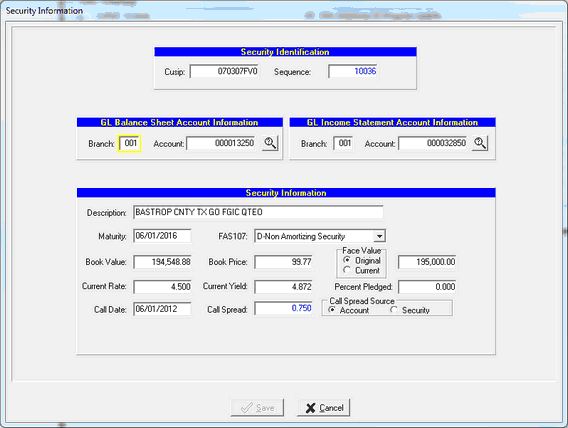
Tab to the book value field and update the information. Exit the screen via the Save button.
Add New Item
New purchases that were made throughout the month need to be added to the inventory prior to requesting cash flow information. To add a security, click the Add New Item button. The same detailed Security Information screen as for editing an existing security will be displayed, but all fields have been cleared out. Below are short explanations of each field. Depending on the nature of the item, some fields may not be required.

Security Information
You must identify each security with a cusip and sequence number.
Cusip - Enter the cusip number assigned to the security. If the investment is a private issue security with a non-standard cusip number, please contact FinSer support.
Sequence - The sequence number is used to differentiate between multiple pieces of the same security you may own and is user defined.
GL Balance Sheet Account Information
Branch - Enter the general ledger branch number for the asset account number. Use the search button to avoid data entry errors.
Account - Enter the asset general ledger account number. This is the principal balance GL number.
GL Income Statement Account Information
Branch - Enter the general ledger branch number for the income account number.
Account - Enter the income general ledger account number.
Security Information
Description - Enter the description of the security.
Maturity - Enter the maturity date of the security. Remember you must enter a 4 digit year.
FAS 107 - Select one of the FAS 107 categories by clicking on the arrow to bring up a drop down box.
Book Value - Enter your current book value.
Book Price - Enter the current book price.
Current Rate - Enter the stated annual interest rate of the security.
Current Yield - Enter the current yield of the security.
Percent Pledged - It the cusip has been pledged against public funds, enter the percent that has been pledged
Call Date - Date, prior to maturity, on which a callable bond may be redeemed. If the investment has a call date, enter it here.
Call Spread - Enter the spread as a percentage. The spread is used to determine whether the investment will be called. See Assumption Defaults in Appendix D for an explanation of the call spread function.
Call Spread Source - This area displays the origination of the Call Spread. The Call Spread Source will default to "Account" and the Call Spread data entry will be in read-only mode (blue font). To be able to enter a Call Spread, the source option will need to be switched to "Security" which enables the Call Spread data entry field.
Face Value - Select appropriate button.
Original - Enter the original face value.
Current Face - Enter current value of the security.
If your amount has cents, you will need to enter the decimal point and cents. For whole dollar amounts, enter the dollars without the decimal point and cents.
Delete an Item
Matured or Called securities need to be deleted from the investment inventory prior to requesting the cash flow information.
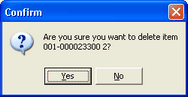
Select the item to be deleted in the grid display, and select the Delete Item button. The system will display a confirmation message dialog box as shown below:
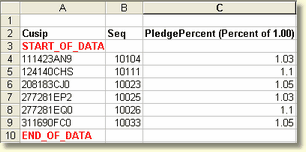
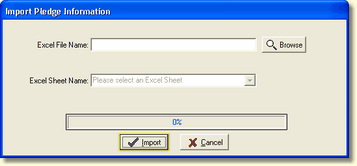
First Tennessee and Vining Sparks Import Pledge Data
Third party interfaces into Security Imports have been written for First Tennessee and Vining Sparks. Both have options to create and import a spreadsheet for their Pledged Percent data. FinSer Support will provide details on the process
Assign Missing G/L
When new security or CDARS items have been added to the import file, a message will be displayed such as; "Invalid G/L, Please correct". The user will need to select the Assign Missing G/L function which will display the following screen:
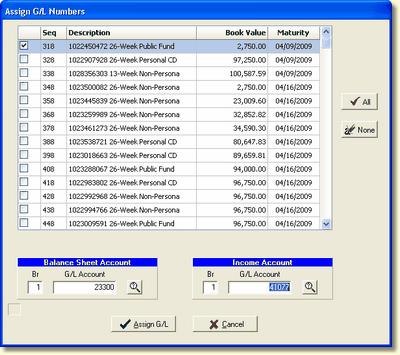
Select the security and assign the balance sheet and income or expense account numbers, at the bottom, to the new security or CDARS items.
Print Securities
You can generate a report of your investment inventory by selecting the Print Securities button. The system will display the report, on your screen, using the preview window interface the system uses for all viewable reports. You can view or print from this screen.