 Main Menu | Data Capture | Security Import
To initiate a request for security information, select the Request Security Data button. The Security information is synchronized with the capture date, therefore you will be prompted for the request date in the following dialog.
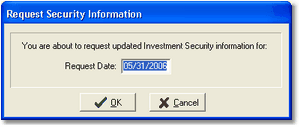
The date displayed in the dialog box defaults to the current capture date. If this is the first step in the processing of information for the new month, it will still be set to the prior month. Change it to the appropriate date. Select OK to start the dialing process.
A connection is made to the FinSer BBS. This prompts the system at FinSer to create a file of the investment information for the requested date.
When the request is completed, an information message dialog box will be displayed:
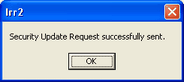
As a Service Bureau client, the basic information has already been processed and needs to be gathered and prepared in a return information package. You need to allow approximately 30 minutes before you request and import the information.
To initiate the receipt of the information, select the Import Security Data button.
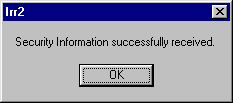
The system again dials the FinSer BBS and automatically downloads the information data package. Once the transfer is complete, it will import the information into the IRR-Solutions® II database. If the import completes without any errors, the following information dialog box will be displayed:
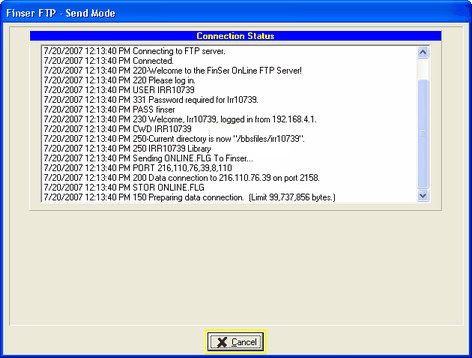
Date and time are updated on the screen.
Below are some possible error messages you may receive while importing your data:
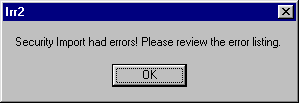
Security Import had errors! Please review the error listing. - The system was not able to provide the cash flow information for some of the securities. Selecting OK will display a report of the errors which you can print.
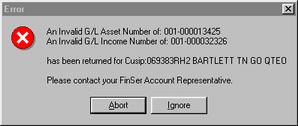
An Invalid G/L Asset Number of:...has been returned for Cusip:... - For the FinSer Service Bureau client only, each security that is imported will have a general ledger number assigned to it. The system will verify the G/L number with the number set up in your database. If the number does not match, the error above will be displayed.
Abort - This option will stop the entire import process. You should call FinSer to assist you in correcting the error.
Ignore - This option will skip the listed account and continue to import the other securities. The account skipped will not be listed in your security inventory when the import is completed. You will need to call FinSer to assist you in correcting the skipped account.