 Main Menu | Reporting | My Reports (Parameter group)
or
Main Menu | Adv. Income Shock Module | Assumptions | Prepayments | Assumption Report
On the Prepayments tab, you can select the Assumption Report button to view and print a paper copy of your prepayment assumptions. Doing so will open a window similar to the one below:
The Prepayment Assumption Audit report will print a summary of all assumptions in effect.
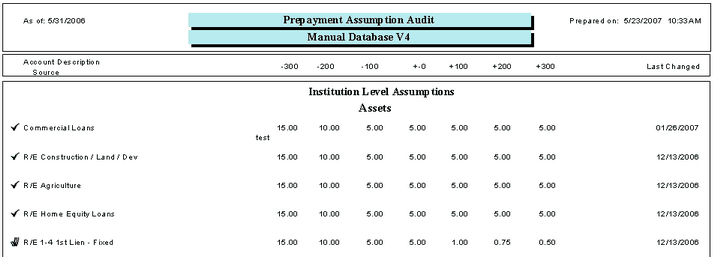
The assumption icons will be displayed next to the account description showing the inheritance of the assumption.
This report provides a summary of the current prepayment assumptions listed in account order. It shows the current prepayment assumptions under the various shock scenarios for each account that has one. The column to the far right on the report will show the date that the assumption was last changed. If a date is in bold, the assumptions are older than three months and should be reviewed to see if they are still appropriate and re-save them to remove the warning.
In the case of assumptions based on type (fixed, floating, or adjustable), if the account has assumptions by type, each type description will be appended to the account description. If a type does not contain it's own assumption, it will list where the assumption derives from in parenthesis below the account description.
Depending on the level of assumptions, the report could be printed with 3 levels of assumptions:
| 1. | Institution Level Assumptions |
| 2. | Branch Level Assumptions |
| 3. | Item Level Assumptions |
The sample report above lists the Institution Level Assumptions.
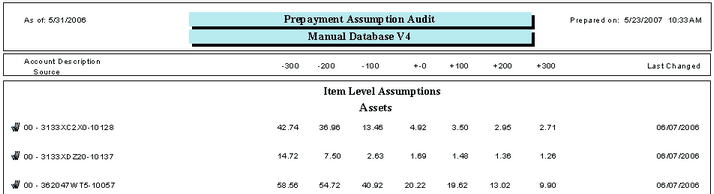
If a Bank is using FinSer's Portfolio or Cash Flow service, the prepayments, which are built into the cash flows, will be displayed on the report under the Item Level Assumptions as shown in the sample report below.
We highly recommend that all module (Shock and EVE) assumption reports be saved each month. This will provide the bank with documentation of the parameters set into the model for any given month. The saved assumption reports can be provided to auditors/examiners if requested.
There are two methods to save the assumption reports.
1. When the assumption report is displayed, select the export icon -  to export the report to your normal month end report location.
2. Go to the Reporting module and place the assumption report in a report group. You can set up a separate report group for all the assumption reports or add the assumption report to an existing monthly report group.