The system provides the ability to set different target balance assumptions over a 24 month time period. The icons displayed next to the volumes in the grid area provides a view of the level of assumptions by period both at the institution and branch levels. These assumptions apply to all shock scenarios.

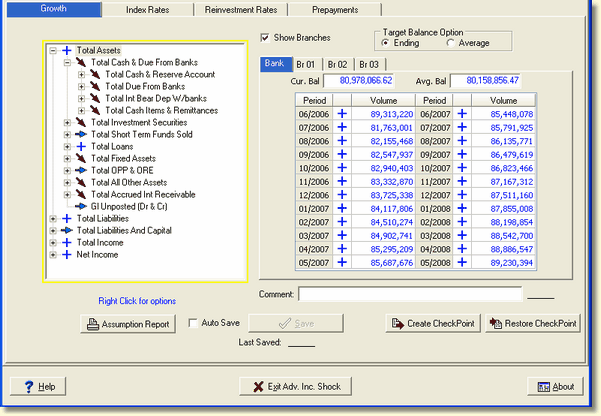
Show Branches - You can display branches by checking the Show Branches box. This allows you to set target balance assumptions at the branch level without exiting the institution level.
Target Balance Options - You have the option to target ending or average balances. All balances must be either ending balances or average balances; A combination cannot be used.
Comment - The comment area is tied to the account selected in the tree view. This field can be used to note the reasoning behind the assumptions that were set for the selected account. A date will be displayed to the right of the comment field informing you of the date the comment was last updated.
Assumption Report - See the Target Balance Assumption Report topic for further details.
Last Saved - A date is displayed when changes were last saved.
Auto Save - The Auto Save feature, when checked, will save your changes automatically as you move to the next account. This will keep the save message dialog box from "popping" up on each account.
Create CheckPoint - This feature will save your current assumption settings before any changes are made. If you forget to select this button to save your assumptions, the first time you attempt to make a change, the system will display the following confirmation box and gives you a chance to save your assumptions.
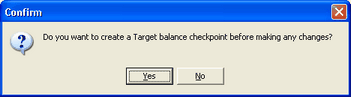
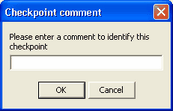
When you select Yes, the CheckPoint Comment box will be displayed allowing you to enter a comment for this initial save. Select OK. If you select NO, you will not be able to restore your prior assumptions.
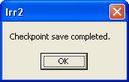
A dialog box will be displayed informing you the CheckPoint Save Completed.
The number of saved CheckPoints you can enter is dependent on the parameter setting in the Param. Setup module in the field called Target Balance CheckPoints. You can increase or decrease this number.

Restore CheckPoint - If you need to restore any prior saved CheckPoint (saved assumptions), select the Restore CheckPoint button. The Restore Target CheckPoint box will be displayed.
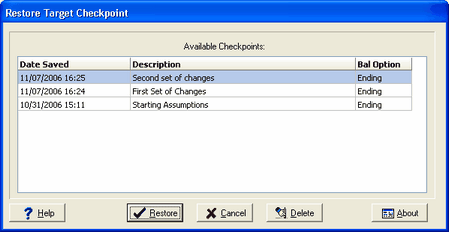
Data Saved - Displays the date and time the CheckPoint was saved.
Description - This is the comment you entered when the CheckPoint was saved.
Bal Option - This is the target balance option you selected; ending or average balance.
Restore - Select the CheckPoint you wish to restore and press the Restore button. All target volumes will be restored in the grid.
Delete - You can delete any CheckPoint. There is no undo here.
