 Main Menu | Reporting | My Reports (Parameter group)
or
Main Menu | Advanced EVE Module | Assumptions | Discount Rates | Assumption Report
The Discount Assumption Report will list the last set of effective assumptions made.
You can view and print a paper copy of your discount rate assumptions by selecting the Assumption Report button located at the bottom of the Discount Rates screen.
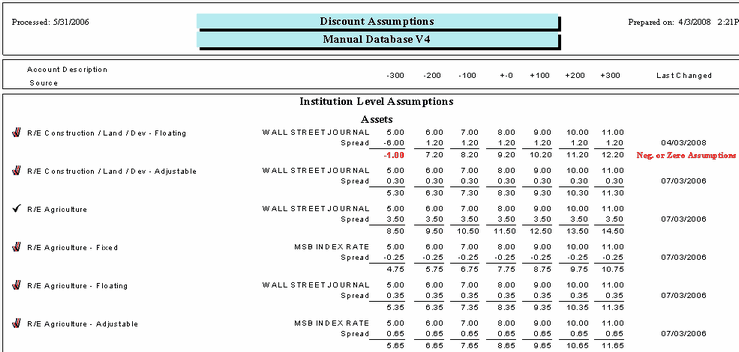
This report provides a summary of the current discount rate assumptions listed in account order. It shows the current discount rate assumptions under the various shock scenarios for each account that has one. The column to the far right on the report will show the date that the assumption was last changed. If a date is in bold, the assumptions are older than three months and should be reviewed to see if they are still appropriate and re-save them to remove the warning.
It also indicates whether that account inherits its assumption ( ) or whether the assumption originates (
 ) with that account.
In the case of assumptions based on type, after each account description on the left, the system will indicate whether the type is "Fixed," "Floating," or "Adjustable."
Carefully check the report for Base Index Rate descriptions of None (these appear in the middle of the report). There should be no assumptions assigned to a Base Index Rate of None. Also make sure there are no negative assumption rates after the rate assumption method is applied.
Checking for Floating Rate Deposits discounted with their own rate
We highly recommend that all module (Shock and EVE) assumption reports be saved each month. This will provide the bank with documentation of the parameters set into the model for any given month. The saved assumption reports can be provided to auditors/examiners if requested.
There are two methods to save the assumption reports.
1. When the assumption report is displayed, select the export icon -  to export the report to your normal month end report location.
2. Go to the Reporting module and place the assumption report in a report group. You can set up a separate report group for all the assumption reports or add the assumption report to an existing monthly report group.