Main Menu | Param. Setup | Host Interface | Deposit Spread
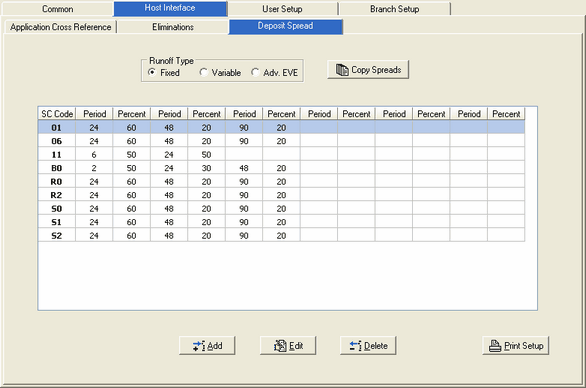
Since there are no maturity dates assigned to deposit accounts, these totals have historically been captured as "immediate" totals on the Gap report. This option allows you to spread these totals, by service charge code, to any of the time frames in the Gap report and in Advance EVE to give maturity and present value to deposits. The Deposit Spread screen is displayed below:
Runoff Type
You can set up different deposit spreads for Fixed, Variable and Advanced EVE or the spreads can be the same for all the runoff types.
Copy Spreads
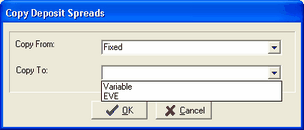
You can copy the deposit spreads from one runoff type to another (Fixed, Variable and Advanced EVE), by pressing the Copy Spreads button. The following screen is displayed below.
Displaying Time Frames or Breakout's
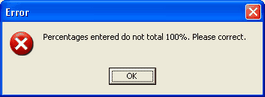
You can spread your deposits into 6 different time frames or breakout's, with a percentage of the total in each of those time frames. The total of all the time frames should total 100%. If the total does not equal 100%, the following error dialog box will be displayed.
The Period columns represent the months. Period 1 would represent the month your processing for.
Print Setup
A parameter printout is available when Print Setup is selected.
Add a Service Charge Code
To add a new service charge code, first determine which runoff type you wish to add it to and select the appropriate radio button at the top. Then press the Add button and the following screen is displayed.
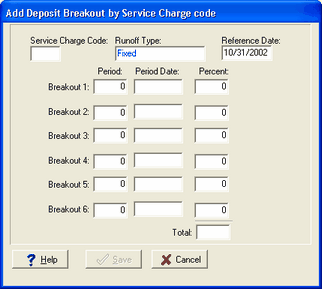
Service Charge Code - Enter the service charge code you wish to add.
Runoff Type - The runoff type font is in blue, therefore cannot be changed.
Reference Date - This is the processing date your time periods are referencing. In the example above, breakout 1, under the period column, represents the first month which is the month you are processing for (10/31/02). This just gives you a point of reference when you are setting your time frames or breakout's.
Breakout-Period/Percent - Enter the time frame and percent of the account balance. Just remember, Period #0 will represent the date referenced above.
Edit an Existing Service Charge Code
To change an existing service charge code, first determine which runoff type you wish to change and select the appropriate radio button at the top. Then press the Edit button and the following screen is displayed.
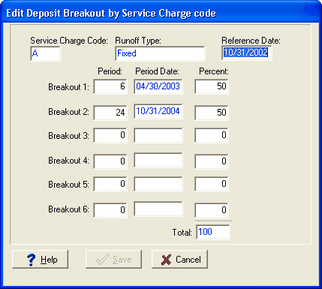
Service Charge Code - The system displays the service charge code you are changing in a blue font, which means you cannot change the service charge code here.
Runoff Type - The runoff type font is in blue, therefore cannot be changed.
Reference Date - This is the processing date your time periods are referencing. It defaults to the last processing date.
Breakout-Period/Percent - Change the time frame and percent of the account balance. Just remember, Period #0 will represent the date referenced above.
Deleting an Existing Service Charge Code
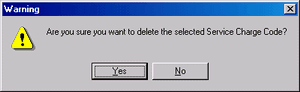
To delete an existing service charge code, first determine which runoff type you wish to delete and select the appropriate radio button at the top. Then press the Delete button and the following screen is displayed. The system gives you another chance to change your mind.