 Main Menu | Param. Setup | Common | Chart of Accounts
The Chart of Accounts screen displays the A/L account numbers. Part of the software installation process includes setting up an A/L chart of accounts identical to your general ledger on your host system. The Chart of Accounts tab is displayed below:
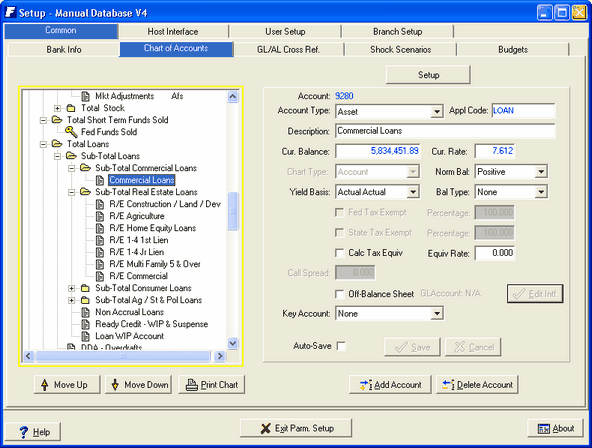
Chart of Accounts Tree Structure
When the IRR-Solutions® II software was installed, an one-for-one match of your general ledger accounts was setup here. You can display as much or as little of the chart of accounts as you wish by opening  or closing
  the folders. The folder
  icon represents an A/L subtotaling account number. An account with the key
  icon has been designated as one of the 18 different key accounts. A further explanation of a key account will follow.
Displaying Accounts:
Movement around the chart of accounts is easy. To display information about an account on the right side of the screen, simply click on the account or use the arrow keys to move to the account. If you wish to see the individual accounts included in a subtotal account, click on the icon next to the account. The folder will open to display all the accounts under the subtotal account.
Moving Accounts:
There are two ways to move an A/L account within the account structure. The drag n' drop method or selecting the
Move Up and Move Down buttons at the bottom of the screen. The buttons will be explained later in this section.
You can move an account with the drag n' drop method anywhere within the same account type (assets, liabilities, liabilities and capital, income, and expense.)
Account Information
A/L Account - Each time you add a new A/L account, the system will automatically generate an account number for you. The IRR-Solutions® II system structure does not rely on knowing what the account numbers are but on the description of the account instead.
Account Type - Select one of the 5 account types: Asset, Liability, Income, Expense, Capital.
Appl Code - Each account with a balance tied to an application or security import file will display the application source. The following applications are used in this field: Secimport, Loan, DDA, CD, and Misc.
Description - Enter the description of the A/L account. To keep the account structure consistent, start subtotaling accounts with Total, i.e. Total Assets, Total Liabilities.
Cur. Balance - Each time you process, the system will automatically update this field. It is not necessary to enter a balance when you setup a new account.

Cur. Rate - Each time you process, the system will automatically update this field. It is not necessary to enter the rate when you setup a new account. It designates Expense accounts who normal balance would be negative in a mixed I/E environment. If the Mixed I/E is not used, all accounts normal balance is positive.

Chart Type - Select the account type from the drop-down box. The two available options are Subtotal or Account.
Norm Balance - This option is used together with the Bank Information Mixed I/E option to designate the normal balance of the account.
Yield Basis - Select the appropriate yield for this account. If None is selected it defaults to actual/actual. There are 14 different yield basis options.
Balance Type - If you want Fed Funds to appear on the gap reports (they are not keyed into the Misc. Data Entry screen), the Balance Type must be set to YTD Bal.
Fed Tax Exempt - Check the box if this account is exempt from federal taxes. This field only applies to income and expense accounts.
Percentage - Enter the percentage of the account balance which is federal tax exempt.
State Tax Exempt - Check the box if this account is exempt from state taxes. This field only applies to income and expense accounts.
Percentage - Enter the percentage of the account balance which is state tax exempt
Calc Tax Equiv - Check the box if this account is tax exempt and you want the system to calculate the tax equivalent yield. To see an explanation of the Tax Equivalent Yield see Appendix A.
Equiv Rate - Enter the Federal and State Marginal Tax Rate so the system can calculate the tax equivalent yield.
Call Spread - You can apply a call spread to an account which will affect all securities, that are callable and tied to that account. This spread will be used in evaluating the securities to determine if it should be considered called in any of the shock scenarios. You can also apply a call spread to an individual security item, see See Assumption Defaults in Appendix D for more details. The field is only active if there are security items listed in the Security Maintenance or Misc. Data Entry tabs for this account.
EVE Exclude - This field is used for institutions who wish to exclude Goodwill accounts from the EVE calculations.This allows exclusion of selected accounts to define regulatory capital for beginning equity capital for EVE reporting
Off-Balance Sheet - If you wish to set up an off-balance sheet account, contact FinSer for assistance.
Key Account - If the A/L account you are setting up is one of the key accounts listed in the drop-down box, select that key description. If the account is not listed in the drop-down box, select None*. The system requires that all key accounts, listed with an asterisk in the drop-down box, be setup.
Note 1: The Dividend Paid key account will automatically roll the year end balance into your retained earnings.
Note 2: If the institution has Goodwill account volumes they wish to exclude from EVE, the key account - EVE Balancing will need to be set up in the Capital subtotal area in the Chart of Accounts tab. This will be used to contain any excluded accounts for balancing purposes. Excluded accounts will be ignored during processing and will not create gains/losses.
Auto-Save - If the Auto-Save box is not checked, each time you make a change to an account and move to the next account change, the system will display a confirmation message dialog box asking you if you want to save it now? This message is shown below.
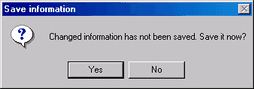
If you have multiple changes to make in the A/L chart of accounts, checking the Auto-Save box will allow the system to automatically save each change when moving to your next account. You will not receive the confirmation message dialog box above. However, you must select the Save button on the last account you intend to change.
Move Up/Move Down
If you need to move an account's location in the chart of accounts, you can select the Move Up or Move Down button at the bottom of the screen. You can only move the account up or down within the same subtotal account range.
Print Chart
Select the Print Chart button to print the chart of accounts.
New Account
Before you setup a new account, you need to highlight the subtotal account on the left where the new account will go. Then select the New Account button. The system will clear the data fields on the right side of the screen for you to enter the new account information.
Delete Account
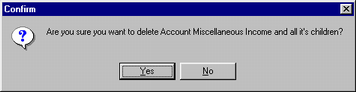
Select the account you want to delete on the left side of the screen and press the Delete Account button. The system will display the confirmation message dialog box below. You have a second chance to change your mind.
Find Account By Description
The option Find Account can be accessed by right clicking on the Chart of Accounts and the following pop-up option will be displayed.

This option will help you quickly find a specific account in your chart of accounts.
See Target Balance Options in the Advanced Income Shock module for the Find Account details.